Generating 3D Scenes from 2D & 360 Photos
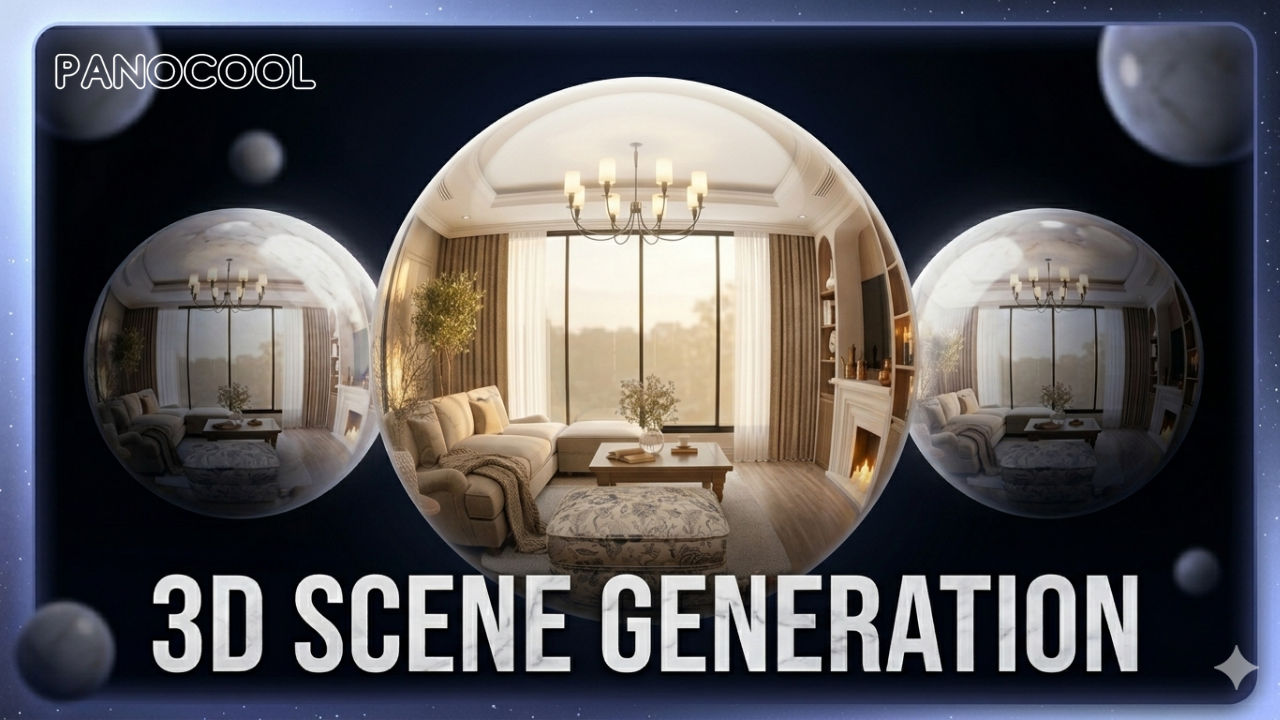
The Generate 3D Model feature uses advanced spatial AI to reconstruct the geometry of a scene from a single image. Whether you are using a standard 2D photo or a 360° equirectangular panorama, PanoCool creates a digital twin that allows for "walkthrough" navigation.
Step-by-Step Instructions
1. Upload Your Media
- Navigate to the PanoCool Retouch editor at pano.cool/pano-editor.
- Drag and drop your image file (JPG or PNG) into the upload area.
- You can use 1 single panorama or up to 4 normal photos.
- Note: High-resolution images with clear architectural lines (floors, walls, ceilings) yield the most accurate 3D reconstructions.
2. Initiate 3D Generation
- Open the Menu in the top toolbar.
- Select Generate 3D Model.
- A preview window will appear. You can explore example models here to see the expected output for both 2D and 360° sources.
- Click the Generate button.
3. Confirm AI Edits
- The system will display the number of AI Edits (credits) required for the generation.
- Confirm by clicking Generate again.
- Processing Time: * 360° Photos: ~2–3 minutes.
- Standard 2D Photos: ~3–5 minutes.
- You may continue working in other tabs; the process runs in the cloud.
4. Exploring the 3D Scene
Once processing is complete, the viewer will switch to the 3D Scene Mode.
- Keyboard Controls: Use WASD or Arrow Keys to move forward, backward, left, and right.
- Mouse Controls: Click and drag to rotate your view and look around the environment.
5. Exporting and Sharing
You have two primary options for your generated scene:
- Download: Save the 3D model file for use in external 3D software.
- Upload to Cloud: Click the Upload button to send the scene directly to the PanoCool Virtual Tour Studio.
Managing Your Uploads
In the Virtual Tour Studio, look for the Green Cloud Icon on your project thumbnail.
- Green Icon: The 3D scene is successfully synced to the cloud and is ready for sharing via URL or embed code.
- Grey Icon: The scene is still syncing or is stored locally.
Need Help?
Join our PanoCool Community to share your scenes and get tips from other immersive photographers!