How to add your logo to 360 images

Updated: new way more simple tool here
 PanoCool Team
Before you share your amazing 360-degree images, there’s a crucial step you shouldn’t overlook: adding your watermark. In this blog post, I’ll show you how to do it by using PanoCool.
First, going to https://pano.cool/design, then sign in.
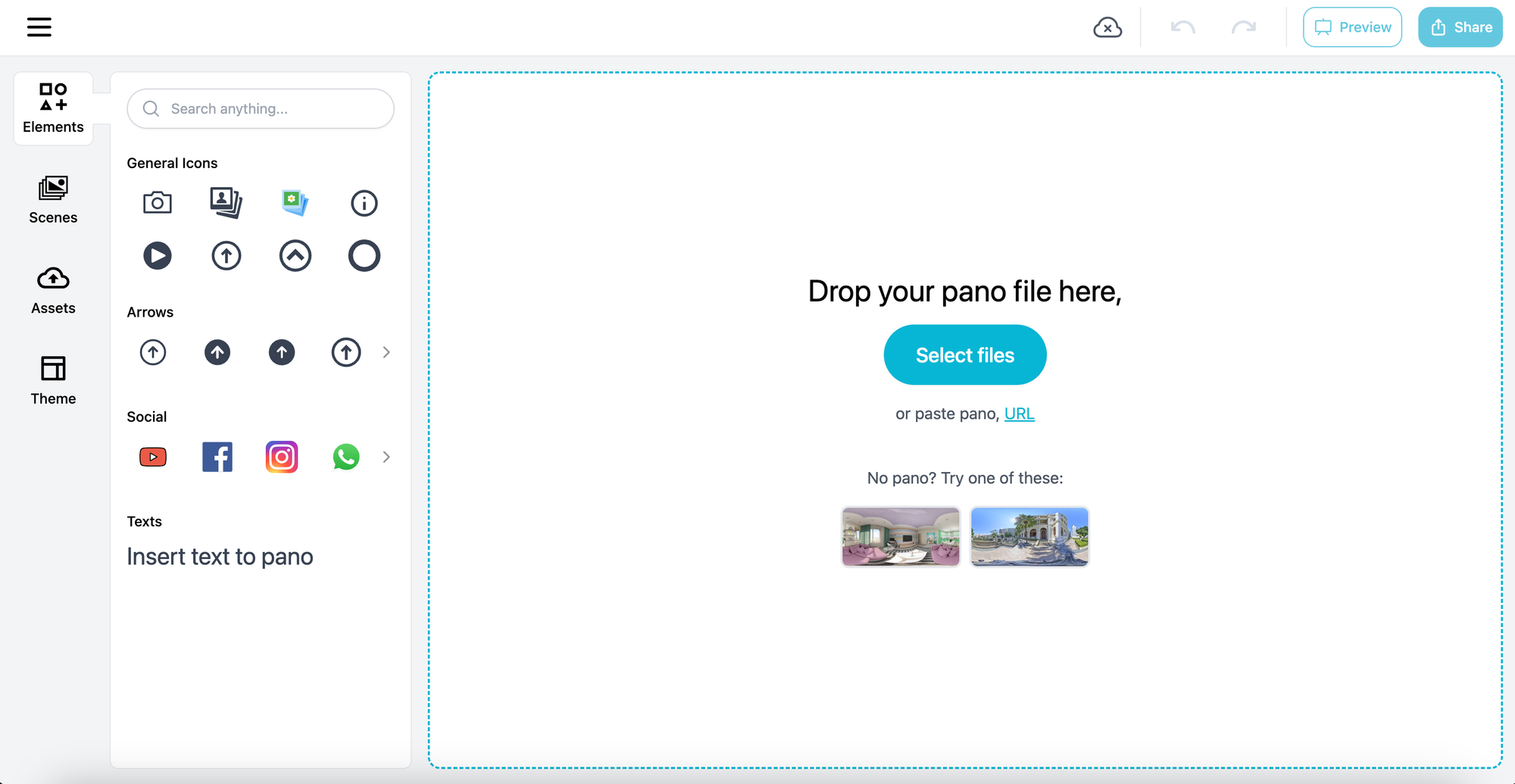
Then drop your pictures in, or just click in "Select files" to upload your 360 images.
After that, drop you logo picture in the pano view, png format is the best.
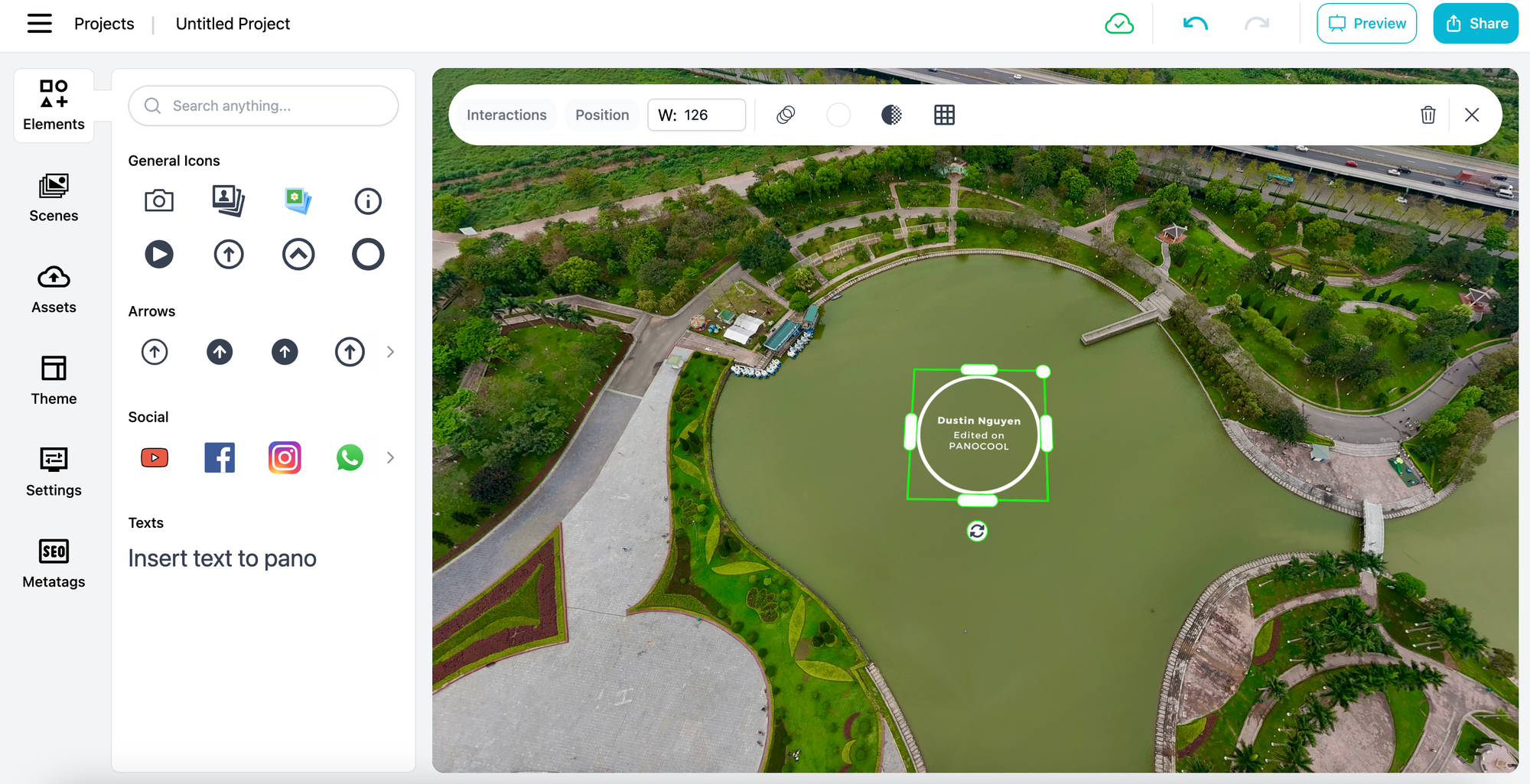
Then, click on the logo, drag it to the position you like, you can rotate or adjust the logo easily.
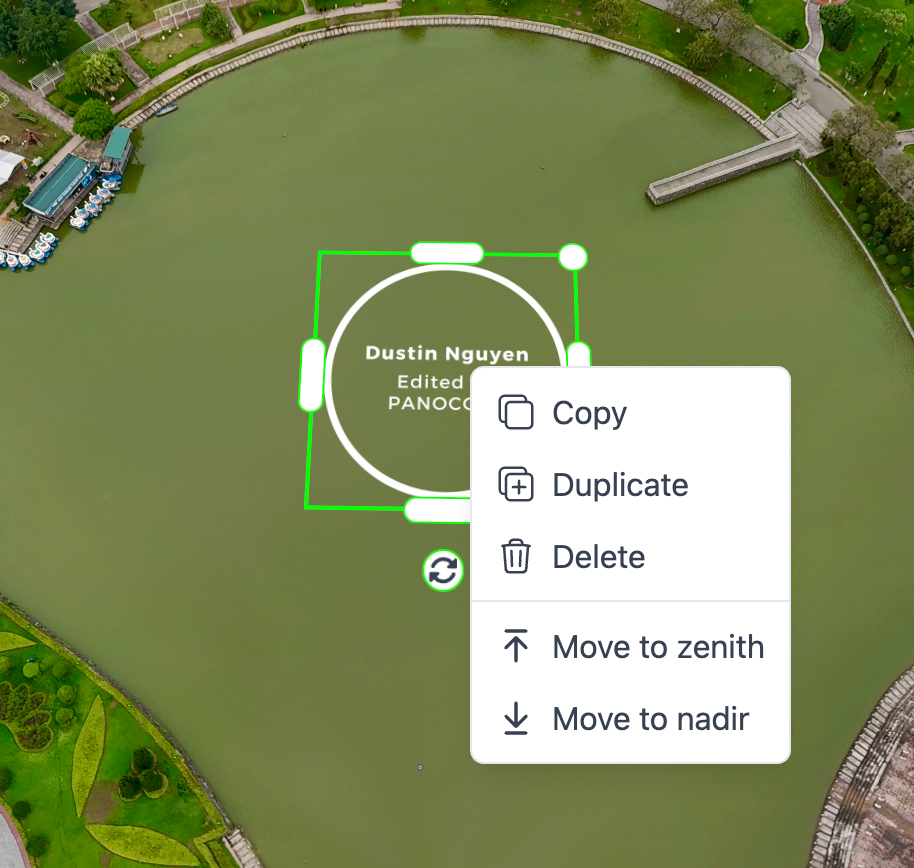
In case you want to move it to the bottom center of the panorama (nadir), right click on the logo, select "Move to nadir".
Done, now you can download the image by:
- click on "Share" button on top right of screen
- select "Download as JPG"
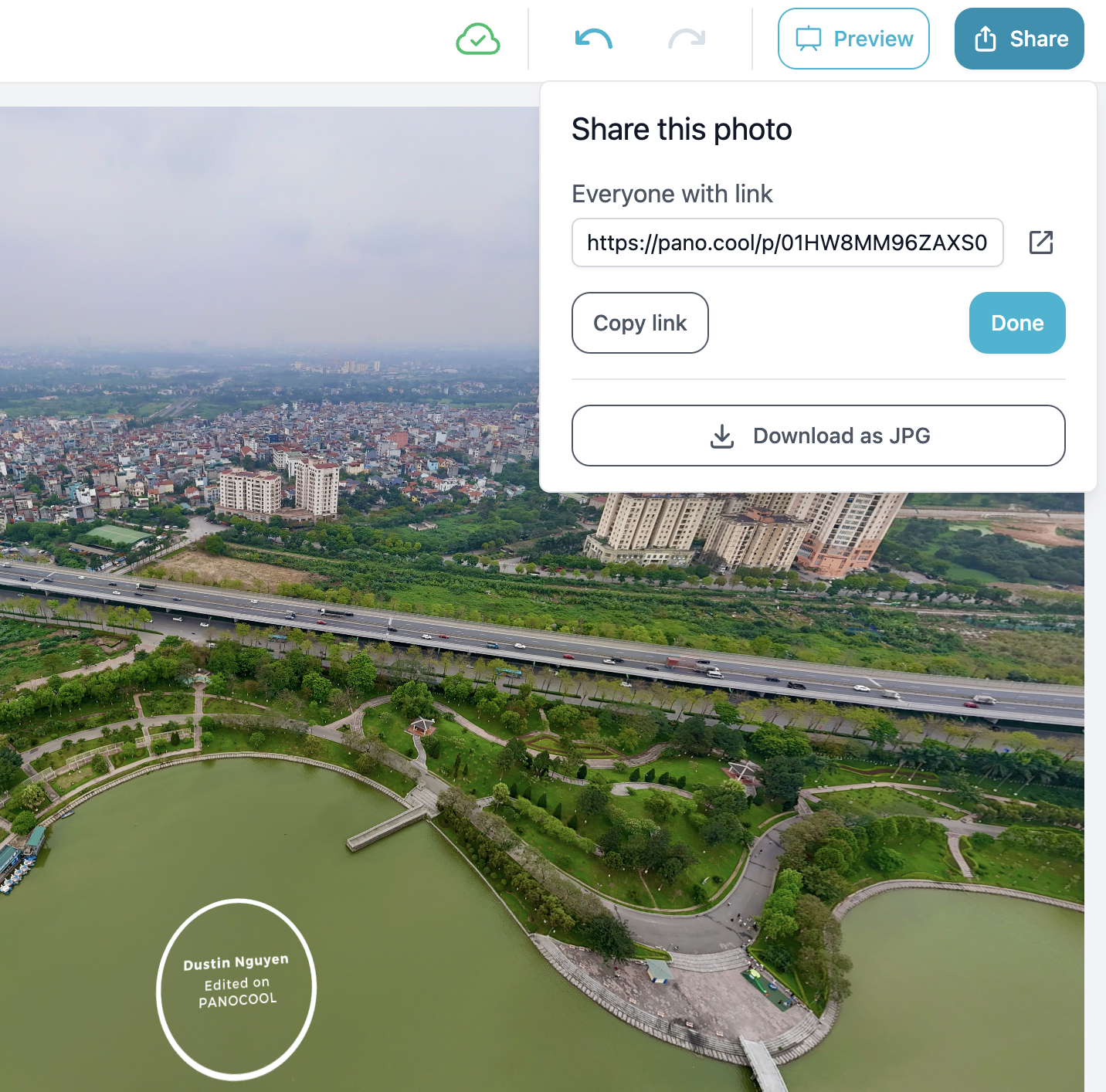
That's it, based on your image size, it will take few seconds to 1 minute to complete the download.
Another easy way to share is to copy the link and share it right away!