
How to Share Exact Views & Hotspots in Virtual Tour - DeepLink Pro in PanoCool
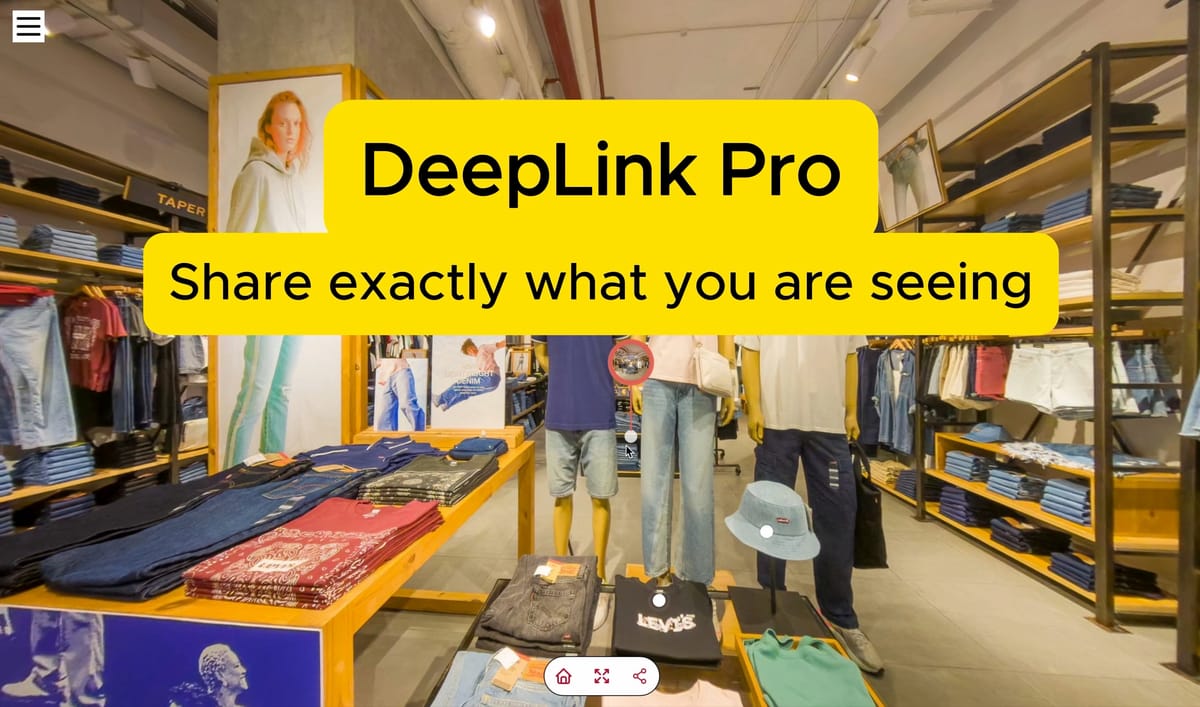
By default, virtual tour links open at the main starting point. DeepLink Pro changes this by dynamically syncing the viewer's real-time state directly to the URL. This allows you or your clients to share or bookmark a specific scene, precise camera angle, and any currently opened information hotspot.
When a user clicks a DeepLink Pro link, the tour loads exactly where the sender was looking, with the same info panels open—seamlessly across desktop, tablet, and mobile devices.
What DeepLink Pro Saves & Shares
- The Specific Scene: Directs users straight to a chosen room or area rather than the main entrance.
- The Exact Camera Angle: Preserves the precise rotation and zoom level (e.g., zoomed in on a specific product on a retail shelf).
- Opened Hotspots: Keeps information popups or media tags open upon landing so the user instantly sees the relevant details.
How to Enable DeepLink Pro
Setup takes less than a minute and requires no coding.
- Open your virtual tour project inside the PanoCool Editor.
- Navigate to the Add-ons tab on the editor.
- Locate DeepLink Pro and toggle it to Enable.
Once activated, your tour's URL will automatically update in the browser address bar as you navigate through the tour. Simply copy that URL at any point to share that exact view.
Youtube tutorial:
Start using PanoCool for free: https://pano.cool