
How to Use & Customize Callout Hotspots for Virtual Tour
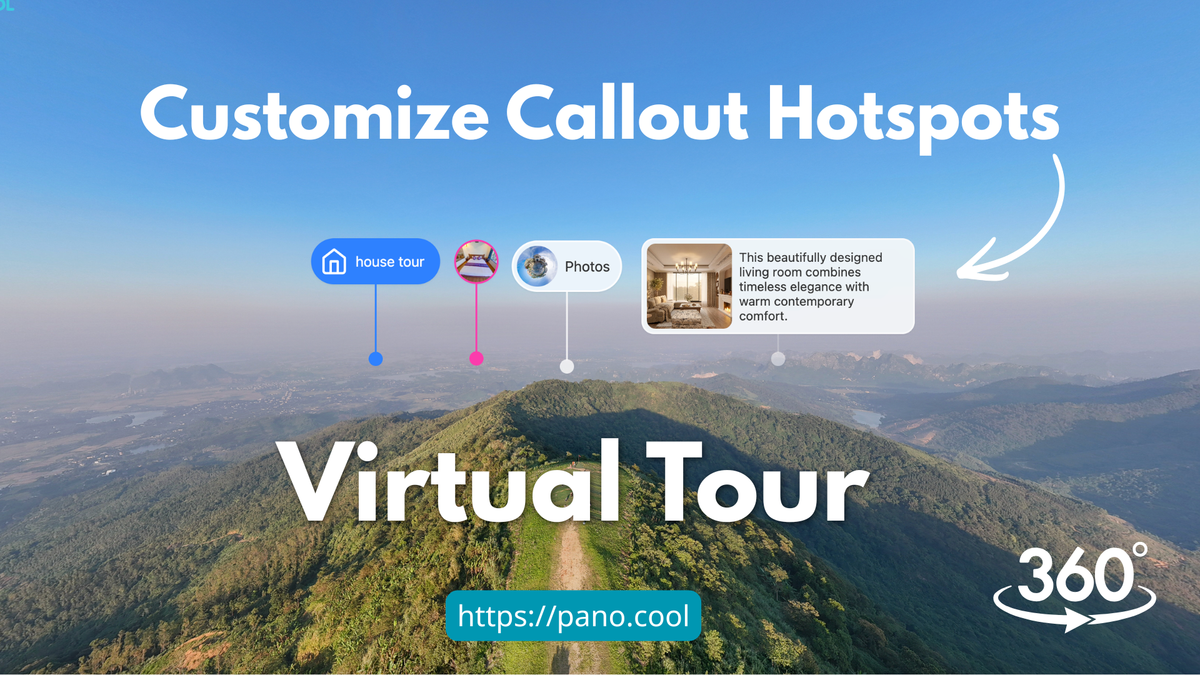
Callout Hotspots allow you to embed interactive information directly into your 360-degree virtual tours. Whether you need to highlight property features, display construction specs, or showcase product details, PanoCool gives you full creative control over how that information looks.
This guide walks you through adding, styling, and saving your custom Callout Hotspots.
Step 1: Add a Callout Hotspot to Your Scene
- Open your project in the PanoCool Virtual Tour Studio: https://pano.cool/design
- Navigate to the panorama where you want to add the information.
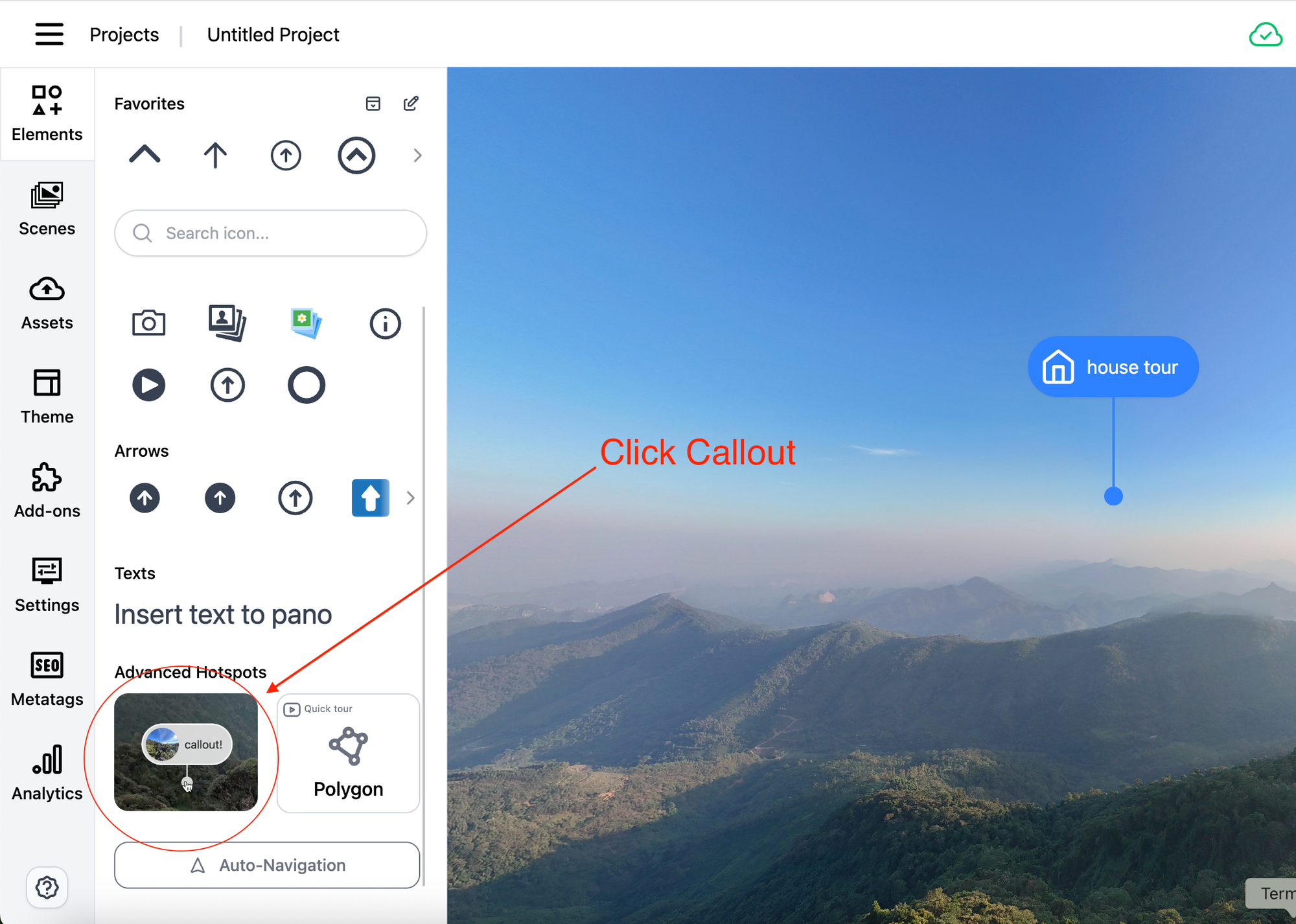
- In Elements side tab, click on click on Callout Hotspot.
- A callout will be inserted at the center of the viewer. You can drag and drop it at any where in the scene to adjust its position.
Step 2: Adjust Hotspot styles
Once placed, on the Hotspot Toolbar, click on Change appearences to change color, styles or text content.
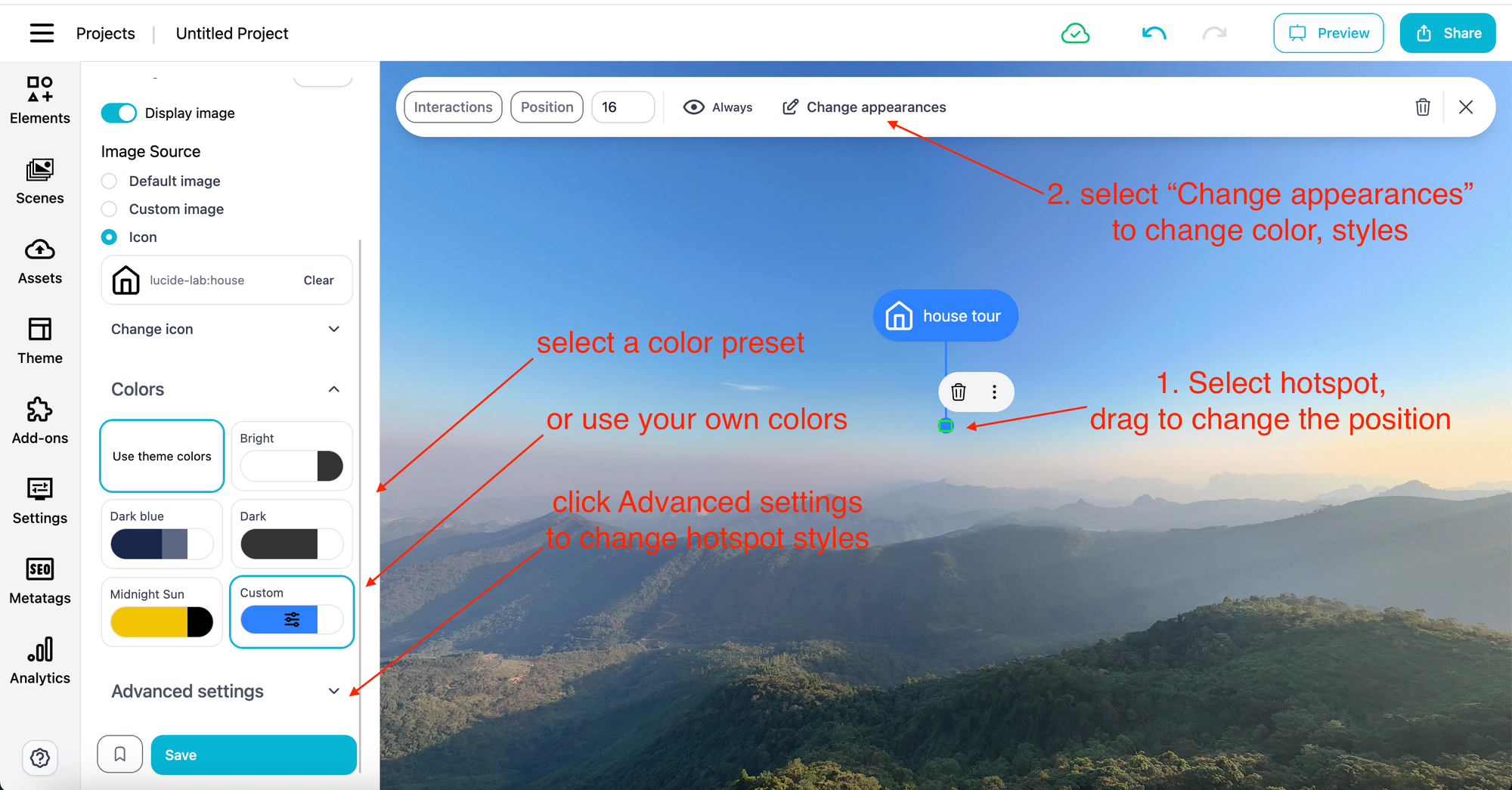
To make your hotspots match your brand guidelines or a specific client design, select a color set or click Custom to select your own colors.
Font Size: in the Hotspot Toolbar, you can change the font size of the hotspot text content.
Line Height: adjust the height of callout line.
Advanced Settings
- Padding: Adjust the spacing (in pixels) between your content and the border of the callout box to give it breathing room.
- Box Rounding (Corner Radius):
- Set it to
0pxfor sharp, classic geometric edges. - Increase the value (e.g.,
8pxto15px) for a soft, modern, rounded appearance.
- Set it to
- Size: Scale the overall width and height of the callout box to fit your scene naturally.
Step 3: Workflow Hack—Save to Favorites
If you have a specific hotspot design that you plan to use frequently across your tour (or in future projects), you don't need to rebuild it every time.
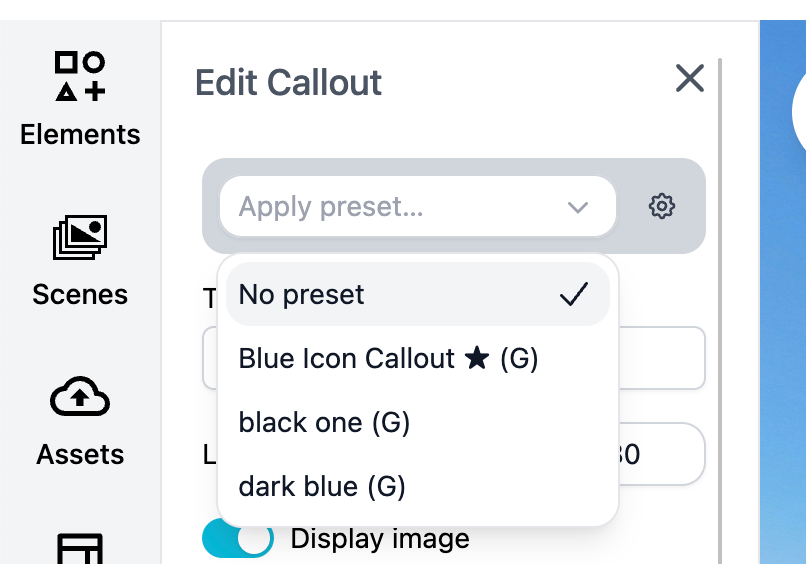
- Once you have styled your hotspot perfectly, click the Save as Preset button near the Save button.
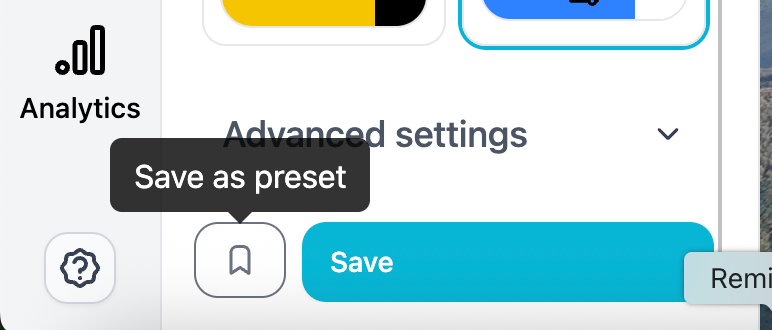
- Give your style a name (e.g., "Blue Callout" or "Clean Info Text").
- To reuse it, simply create a new hotspot, open the Preset selection, and click your saved style. All colors, padding, rounding, and sizing will apply instantly.
💡 Pro-Tips for Perfect Hotspots
- Check Mobile Layouts: Ensure your custom font sizes and box widths aren't too large so they scale nicely on smartphones.
- Contrast is Key: Use high-contrast background colors (like a semi-transparent dark gray with white text) to ensure text remains legible against bright panorama backdrops.
Learn more about PanoCool: https://pano.cool
Join PanoCool Community: https://www.facebook.com/groups/panocool
Youtube Tutorial