
Personalizing Your Workflow: Favorite Icons & Callout Preferences
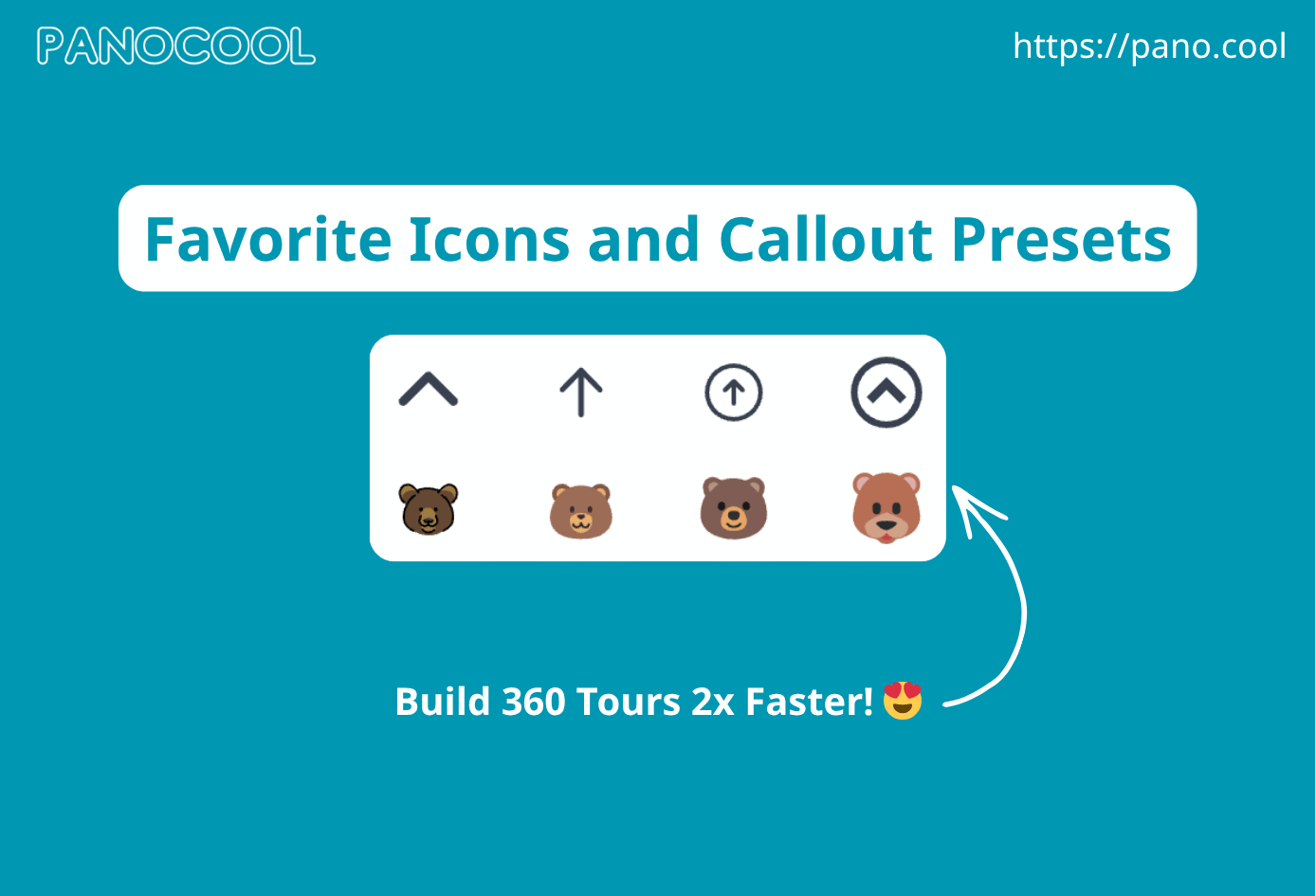
Efficiency is at the heart of a professional virtual tour workflow. The latest PanoCool update introduces two powerful features designed to reduce repetitive tasks and help you build immersive experiences faster: Favorite Icons and Callout Preferences.
1. Managing Favorite Icons
You no longer need to search for your most-used assets every time you open a new panorama. You can now curate a custom library of icons available at your fingertips.
Adding Icons to Favorites
- From the Editor: Right-click any icon already placed in your tour and select "Add to Favorites."
- From Search: Search for specific terms (e.g., "Bear," "Arrow," or "Info"). Right-click any result to save it to your favorites tray.
- One-Click Insertion: Once saved, simply click an icon from your Favorites section to instantly drop it into your current view.
Understanding Scopes: Global vs. Project
Click the Edit (pencil) icon in the favorites section to manage your library. You can toggle between two distinct scopes:
- Global Scope: Icons saved here are available across all of your projects. Ideal for logos, standard navigation arrows, and brand-consistent markers.
- Project Scope: Icons saved here are exclusive to the current project. Perfect for client-specific branding or unique themed icons that aren't needed elsewhere.
2. Callout Hotspot Preferences
Manually adjusting colors, fonts, and sizes for every callout is a thing of the past. You can now create "Blueprints" for your hotspots.
Creating a Preference
- Insert a Callout Hotspot and adjust the Appearances (colors, opacity, border styles) to your liking.
- Next to the Save button, click "Save as Preferences."
- Name your preference (e.g., “Nature Retreat Theme” or “Modern Dark”).
- Set as Default: Tick the "Default" checkbox.
The Workflow Benefit
- Automatic Styling: With a "Default" preference set, every new callout you insert will automatically adopt those styles.
- Switching Styles: If a specific scene requires a different look, simply create a new callout, open the preferences menu, and select a different saved preset to apply it instantly.
Pro-Tips for Speed
- The "Clean Slate" Rule: Use Global favorites for your general toolkit, but keep your Project scope clear for site-specific assets to avoid clutter.
- Default Everything: Set your primary brand colors as the "Default" callout preference the moment you start a new project to save dozens of clicks later.
Need help? If you encounter any issues with the new personalization tools, reach out to our support team or join the conversation in the PanoCool Community Facebook Group.