Retouching Published Panoramas with PanoCool AI
A common challenge in virtual tour production is discovering a needed correction after a scene has already been published. Typically, this would require an offline edit and a manual re-upload, which can disrupt hotspot placements and scene settings.
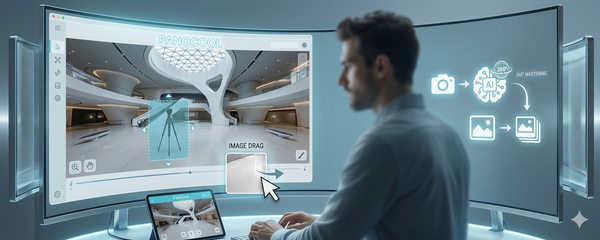
PanoCool eliminates this friction with its integrated AI Retouch suite. This feature allows you to perform high-end image manipulation, including object removal and virtual staging, directly within the PanoCool interface. Changes are applied instantly to your live tour without requiring a file re-upload.
1. Launching the PanoCool Retouch
To modify an existing scene in your project:
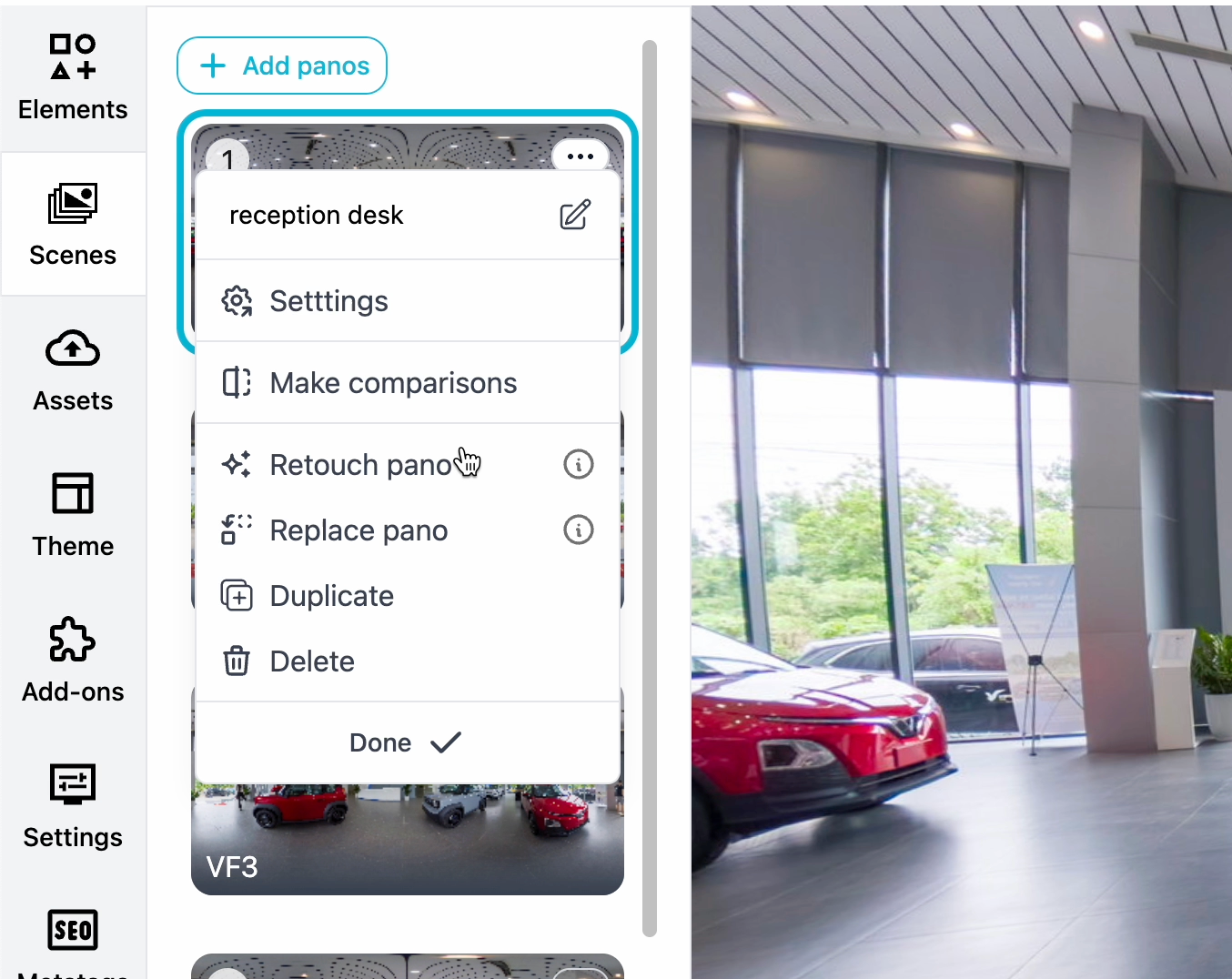
- Click Scene Menu in the scene list.
- Select Retouch Pano.
The panorama will load into the PanoCool Retouch.
2. Seamless Object Removal
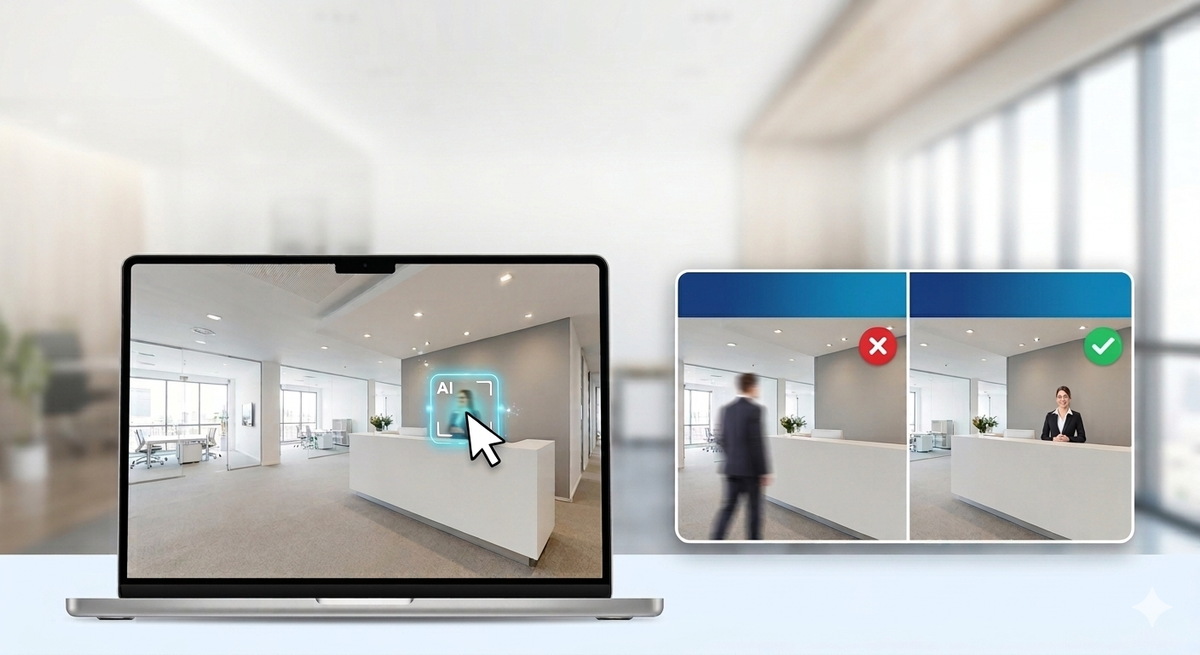
PanoCool’s AI is specifically tuned for 360° geometry, ensuring that when objects are removed, the background remains perspective-accurate.
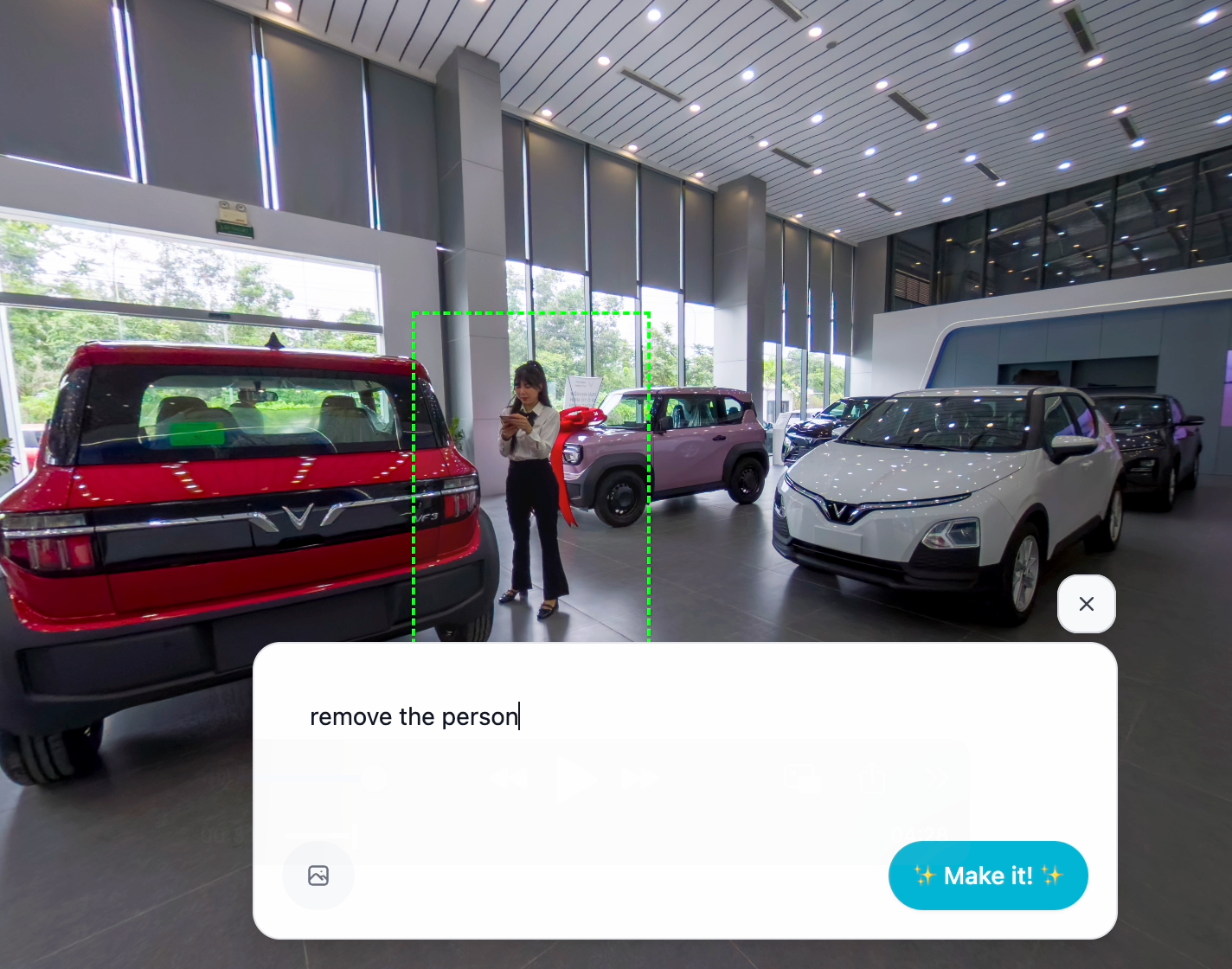
- Select the AI Edit tool.
- Drag to select the unwanted element (such as a person, tripod, or clutter).
- In the AI prompt field, enter a simple instruction like: "Remove this person" or "Clean this area."
- Click Make it button. PanoCool will process the request and render a clean background in seconds.
4. Finalizing and Live Syncing
The most powerful aspect of the PanoCool workflow is the instant update capability.
- Once satisfied with your edits, click Save at the top of the editor.
- PanoCool will automatically replace the source file in your tour’s cloud storage.
- Refresh your published tour link to see the updated version live.
Note: All existing hotspots, floor plan markers, and navigation links remain perfectly intact, as only the underlying image asset is updated.
Pro-Tips for PanoCool Power Users
- Resolution Integrity: PanoCool preserves the high-resolution quality of your original upload during the AI generation process.
- Prompting Tip: When adding people or furniture, mention the environment (e.g., "Add a modern chair that matches the office lighting") for the most realistic blending.