Create a 360 Virtual Tour in Minutes with AI Auto Connect
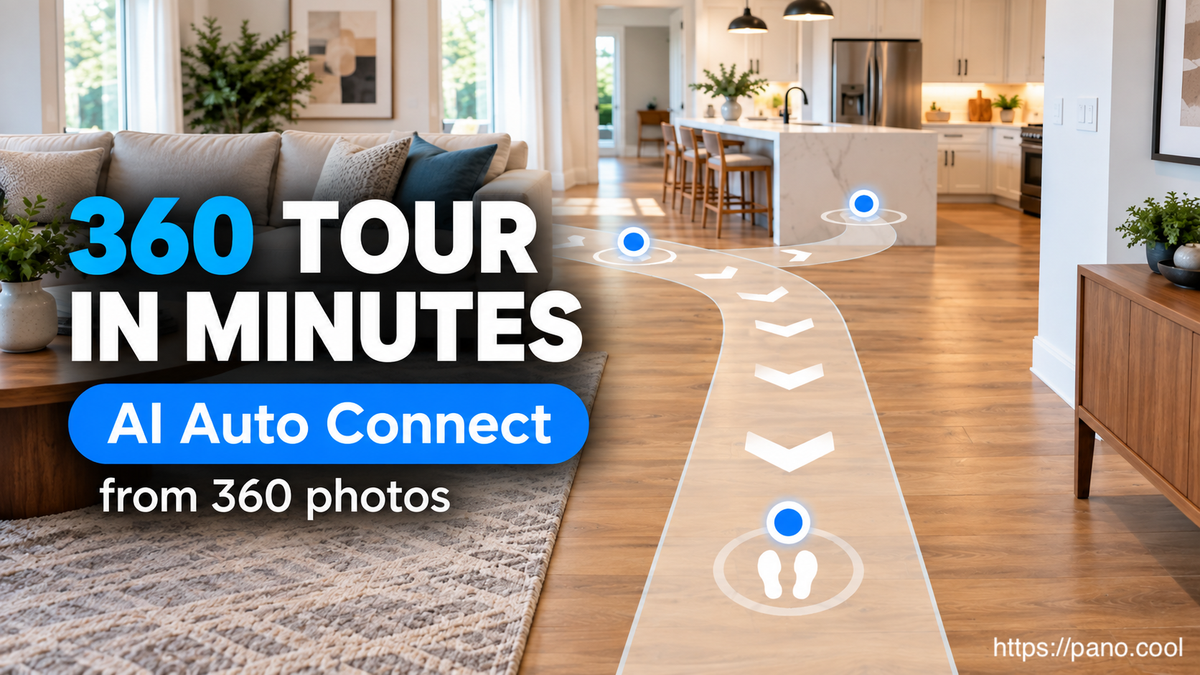
Creating a connected 360° walkthrough normally takes time. After taking your photos, you may need to place every scene on a floor plan, work out where each photo belongs, and manually create the connections between them.
With PanoCool AI Auto Connect, much of that work can now be done automatically.
Simply upload your 360° photos, start AI Auto Connect, and let PanoCool analyze the space, position your scenes, and create the connections for you. Instead of spending hours setting up a walkthrough manually, you can get a tour ready in just a few minutes.
From 360° Photos to a Walkthrough in Just a Few Clicks
AI Auto Connect is designed to make creating an indoor 360° walkthrough as simple as possible.
You don't need to draw a floor plan first or manually connect every photo.
PanoCool analyzes the visual information in your 360° photos to understand how the scenes relate to each other. It then generates a floor plan, places your scenes in their estimated positions and directions, and creates connections between nearby scenes.
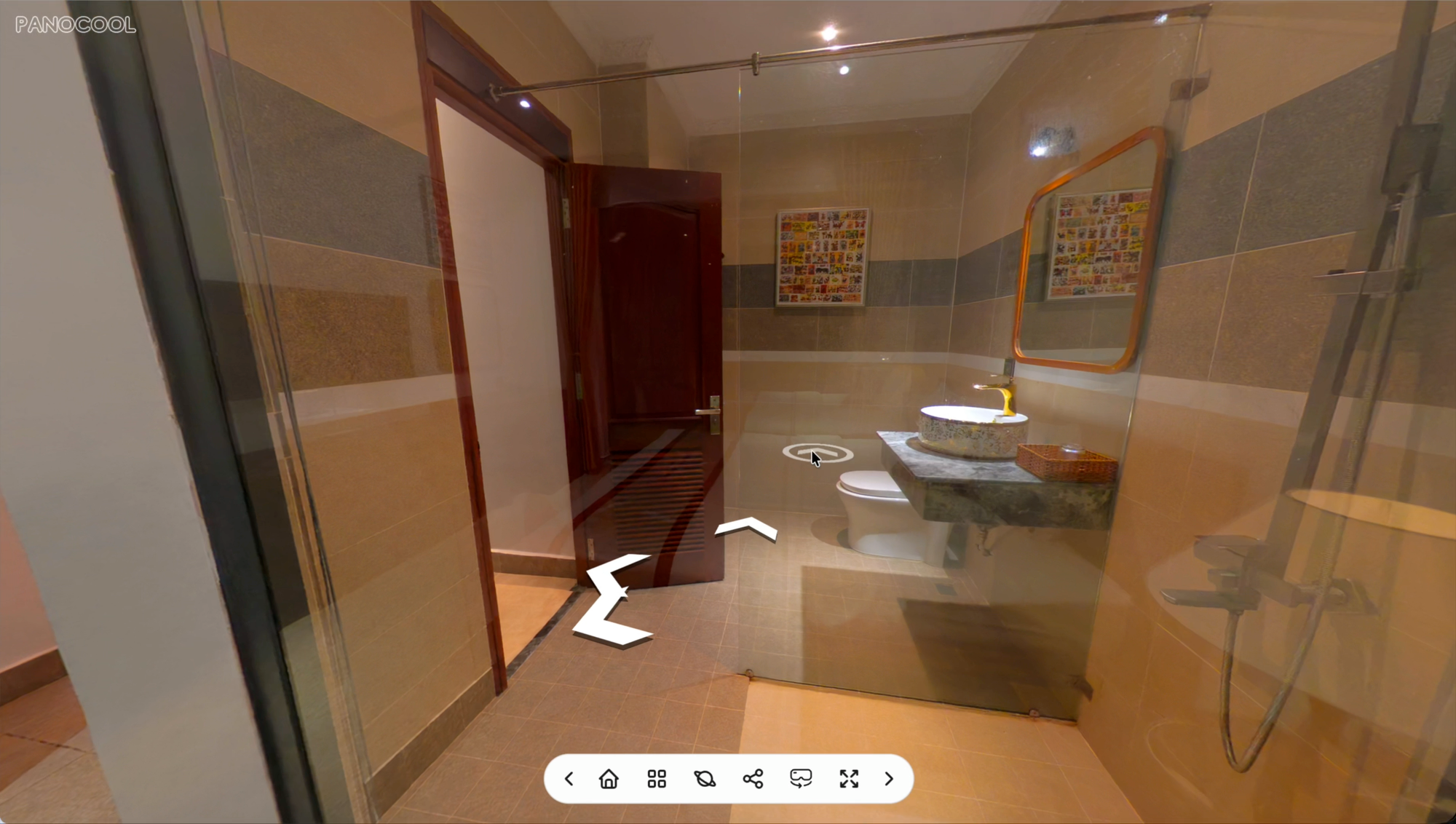
Once complete, you can immediately preview the result and walk naturally from one scene to another.
How to Use AI Auto Connect
1. Upload Your 360 Photos
Open your project in PanoCool Virtual Tour Studio and drag in all the 360° photos you want to use.
For the best results, the photos should be captured as a natural walkthrough through the property, for example, moving from the entrance to the living room, kitchen, hallway, bedrooms, and other spaces.
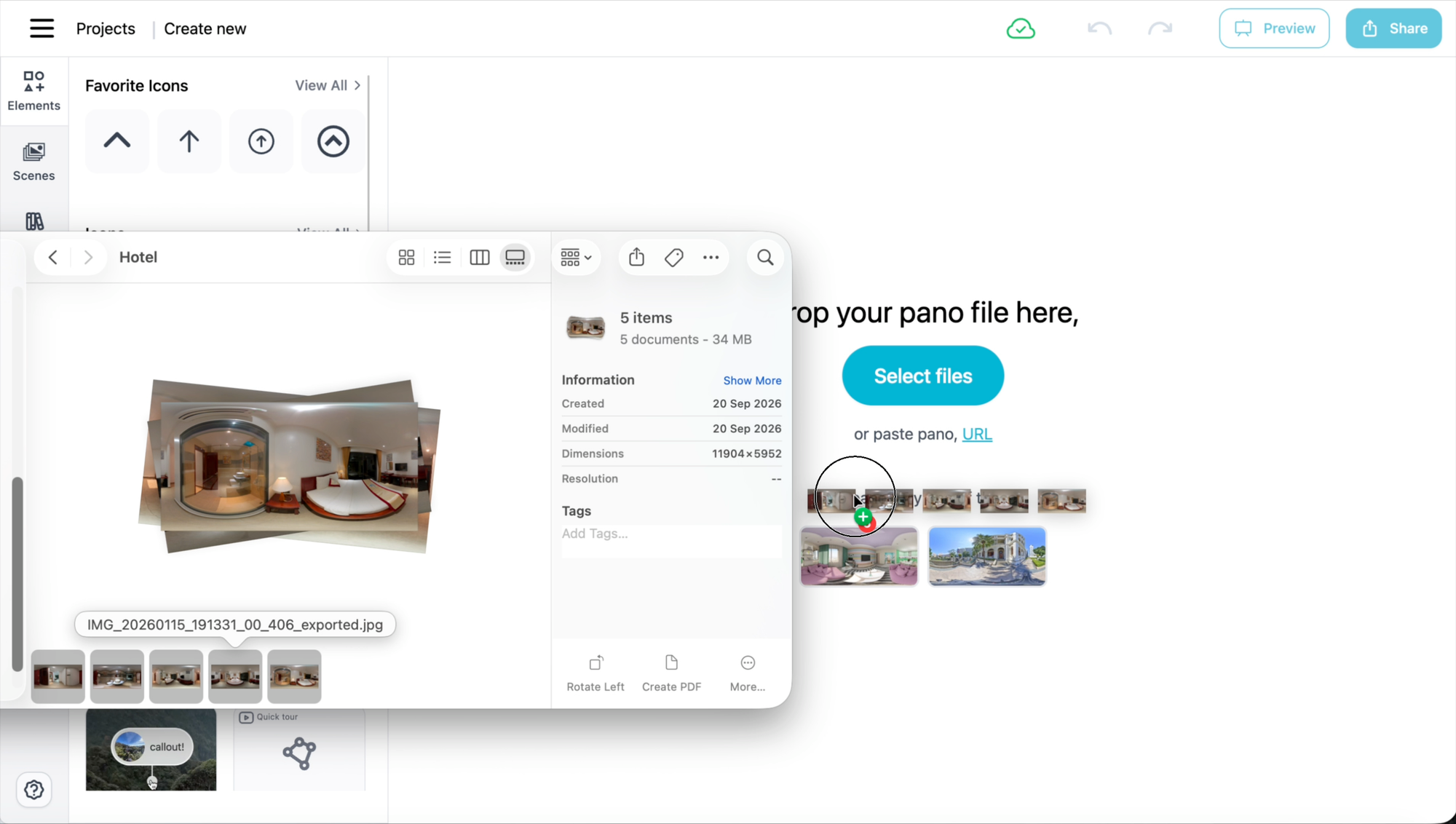
Once your photos have finished uploading, click the AI Auto Connect shortcut.
2. Start AI Auto Connect
Click Start to begin the setup.
If the property has multiple floors, tell PanoCool how many floor levels it contains.
For a single-floor apartment or office, you can simply keep everything on one level.
For a multi-storey house, separate the photos by floor so AI Auto Connect can analyze each level independently.
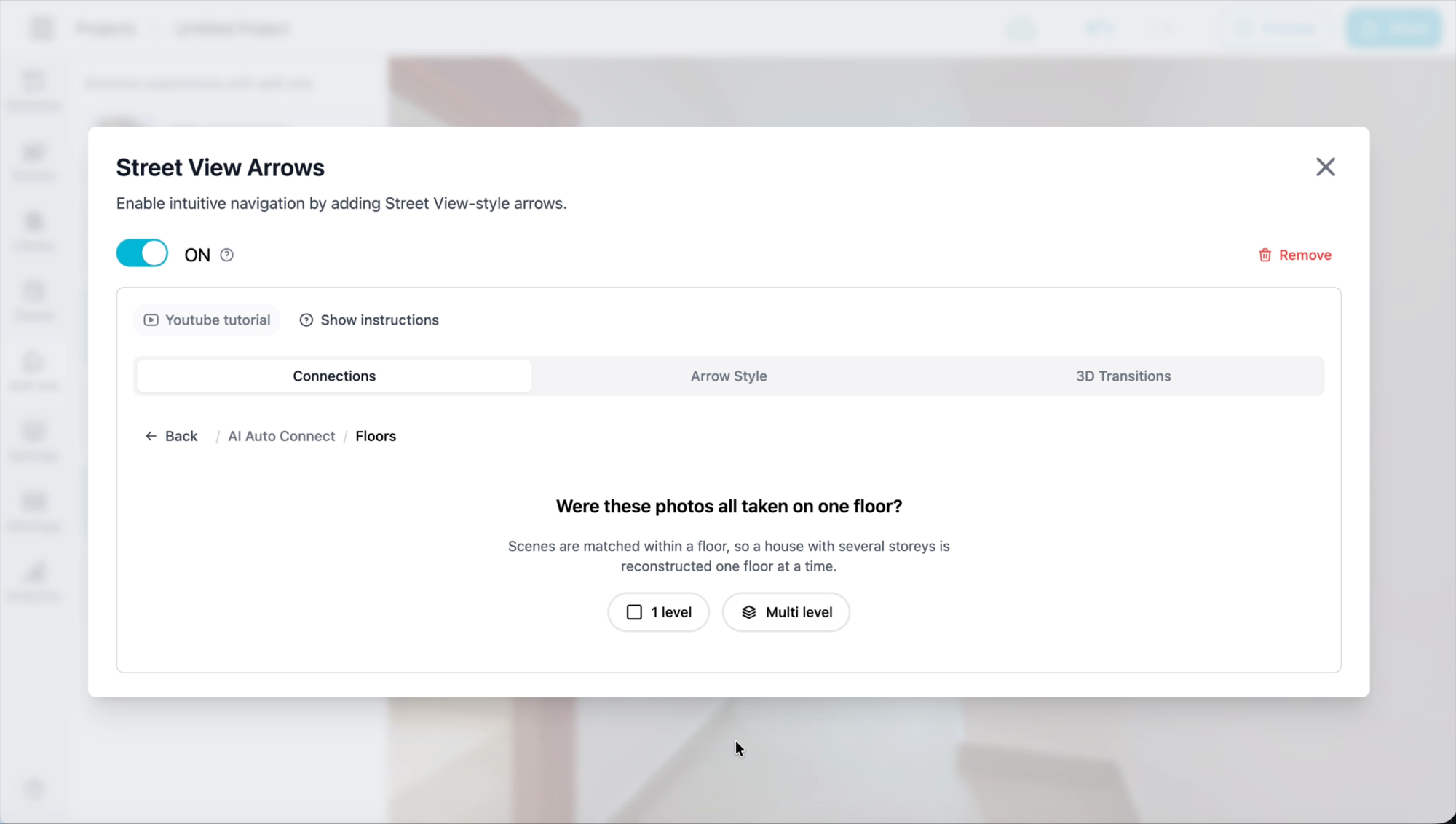
When everything looks correct, click Start Process.
3. Let PanoCool AI Do the Work
Now PanoCool analyzes your 360° photos and works out how the scenes fit together.
It looks for visual relationships between nearby photos, estimates their positions and facing directions, and creates the connections needed for the walkthrough.
The process may take a few minutes depending on the number of scenes.
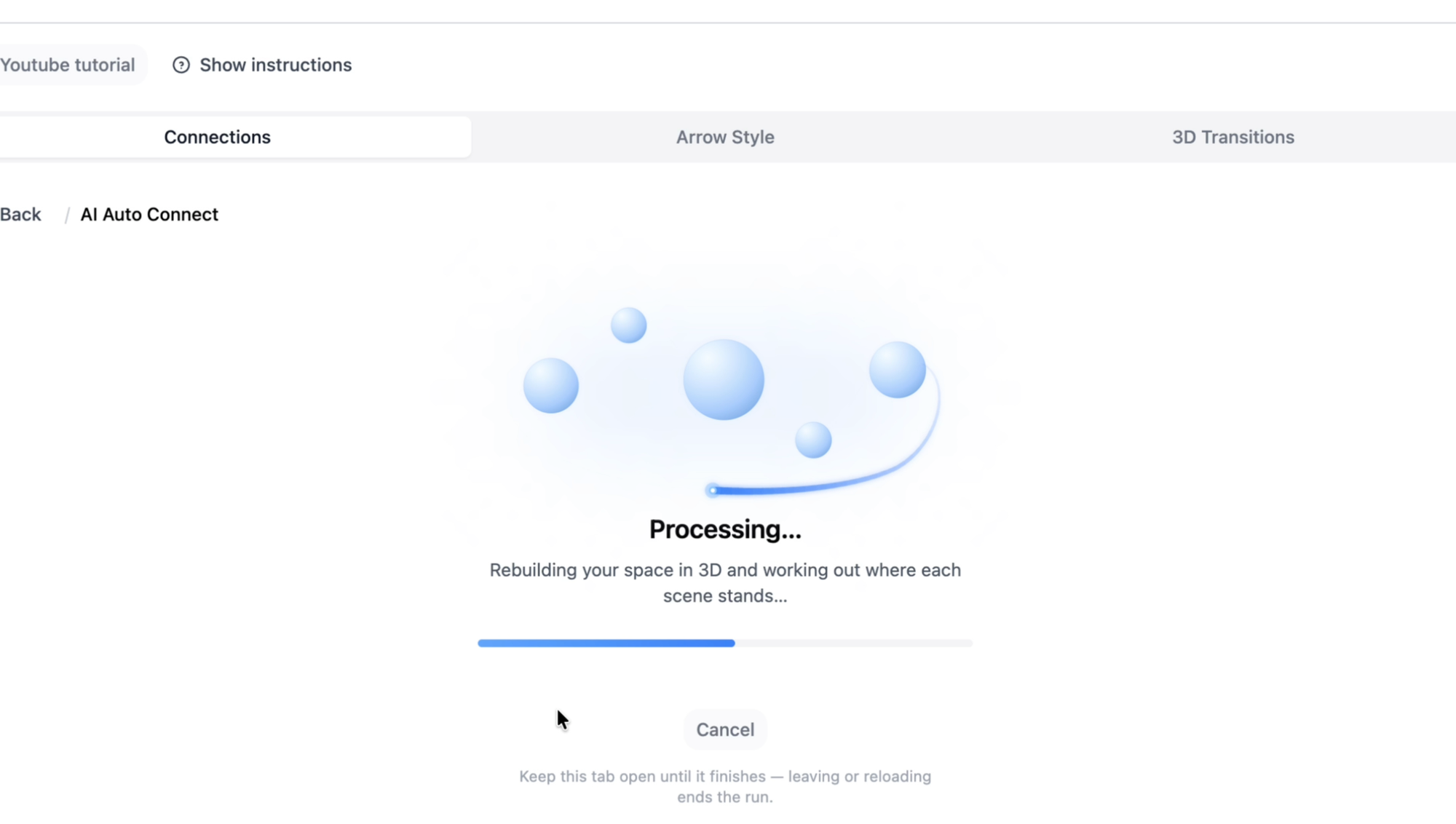
You can leave the complicated scene positioning and connection work to AI instead of building everything manually.
Review and Apply the Result
When processing is complete, PanoCool shows you the result before anything is applied.
Click Apply, and the generated layout will be added to your project.
You can now see your scenes positioned on a floor plan with the connections between them.
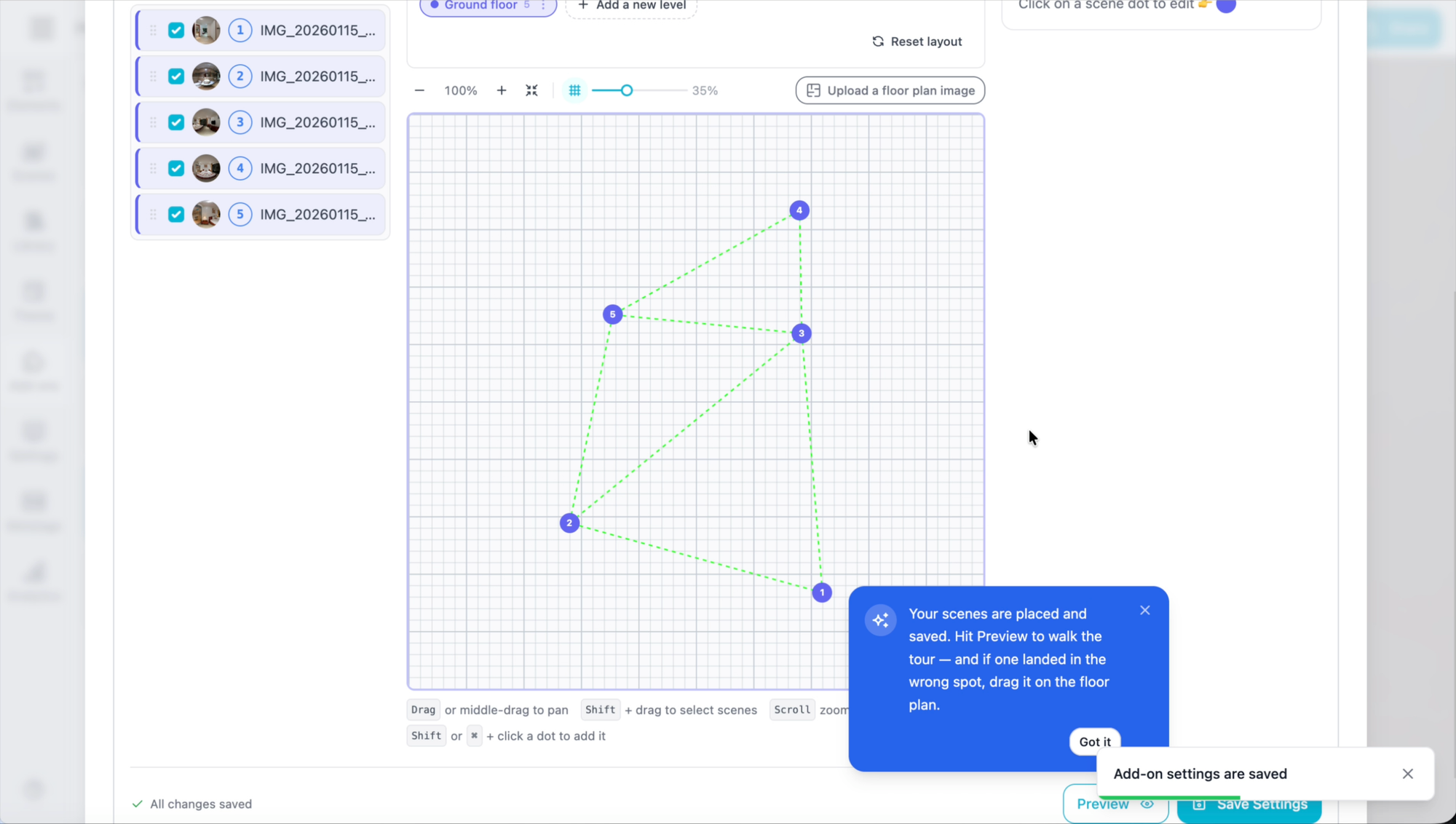
The generated result is still fully editable. You can move a scene, adjust its direction, or change individual connections whenever needed.
AI Auto Connect gives you a fast starting point without taking away manual control.
Preview Your 360° Walkthrough
Now click Preview.
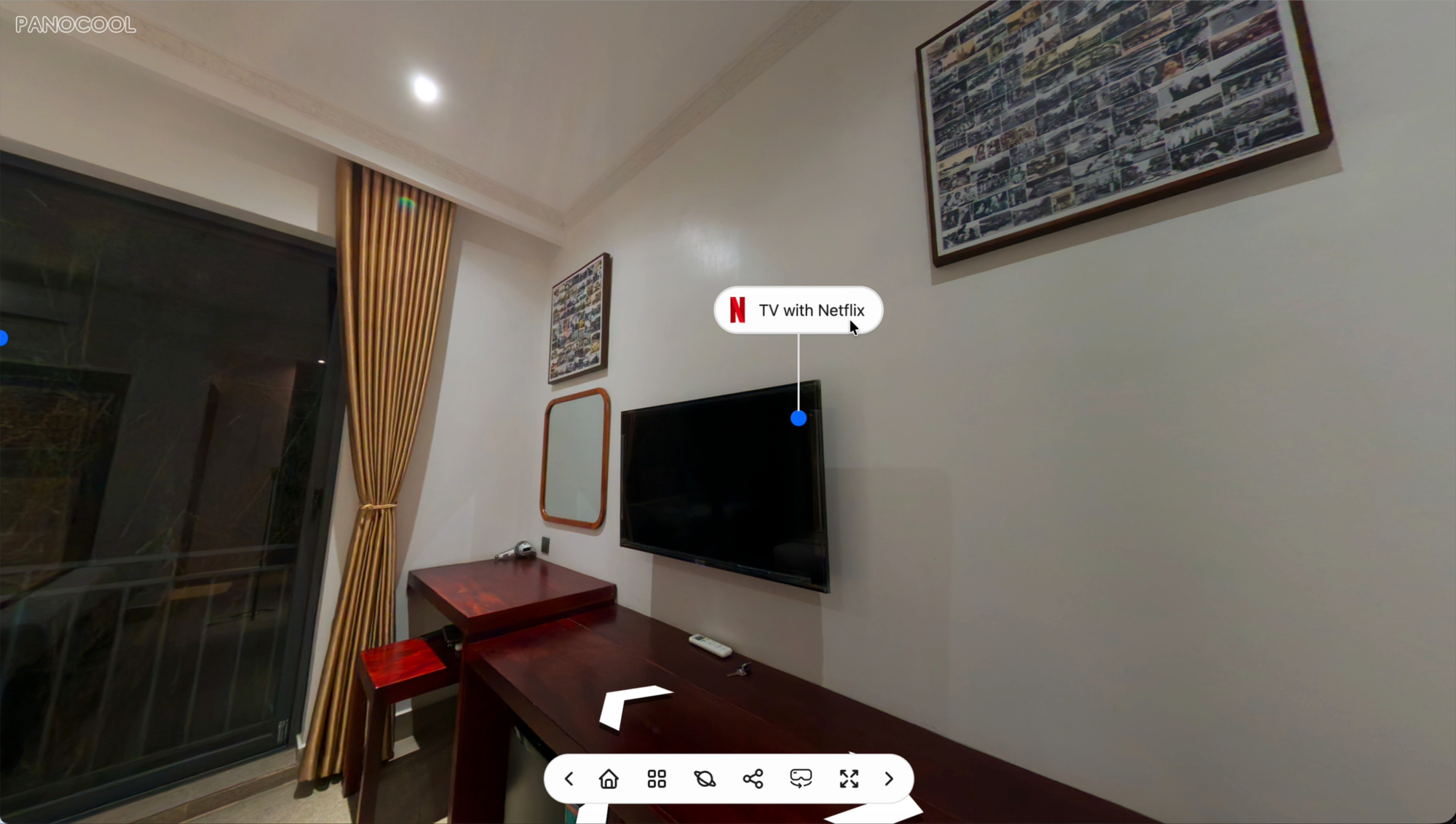
You can move smoothly from one 360° scene to another using the navigation arrows, creating a familiar walkthrough experience for visitors.
That's it—from a collection of 360° photos to a connected virtual tour with just a few steps.
Ideal for Real Estate and Indoor Virtual Tours
AI Auto Connect works especially well for indoor spaces where photos are taken progressively through the property.
This makes it a useful tool for:
- Real estate virtual tours
- 3D house tour-style walkthroughs
- Apartments and residential properties
- Hotels and resorts
- Offices and coworking spaces
- Showrooms
- Retail stores
- Restaurants and other indoor venues
For real estate photographers and virtual tour creators, this can significantly reduce the time needed to turn a photo shoot into an interactive property walkthrough.
A typical house or apartment may contain many 360° scenes. Positioning and connecting every one manually can quickly become repetitive. AI Auto Connect handles much of this setup automatically so you can spend more time refining and presenting the tour.
Tips for the Best Results
AI Auto Connect works best when your 360° photos have enough visual overlap for the AI to understand how the space connects.
For better results, capture photos every few steps as you move through the property, keep the camera at approximately the same height, and make sure nearby shooting positions share visible parts of the room.
For example, when moving from a living room into a kitchen, take photos along the natural walking path rather than capturing only one photo in each room.
This gives AI more visual information to understand the relationship between scenes.
Mirrors, large glass walls, very featureless corridors, or photos containing mostly open sky can be more difficult to analyze. If a scene cannot be positioned automatically, you can simply place it manually afterward.
Build More Than Just a Walkthrough
Creating the connected walkthrough is only the beginning.
Once AI Auto Connect has prepared your scene layout, you can continue customizing your virtual tour in PanoCool.
Choose from different themes and layouts, customize the interface to match your project or brand, and add interactive content such as hotspots, text, images, galleries, videos, information popups, menus, maps, and more.
This allows you to turn a simple 360° property walkthrough into a complete interactive experience for your clients and visitors.
Create Your Next Tour in Minutes Instead of Hours
Whether you're building a real estate virtual tour, an indoor property walkthrough, or a 3D house tour-style experience, manually positioning and connecting every 360° photo shouldn't be the part that takes the most time.
With PanoCool AI Auto Connect, simply upload your photos and let AI handle much of the setup for you.
360° photos → AI Auto Connect → connected walkthrough.
Create your next virtual tour with PanoCool at pano.cool.