How to Create a 360 Office Walkthrough Tour with DJI Osmo 360
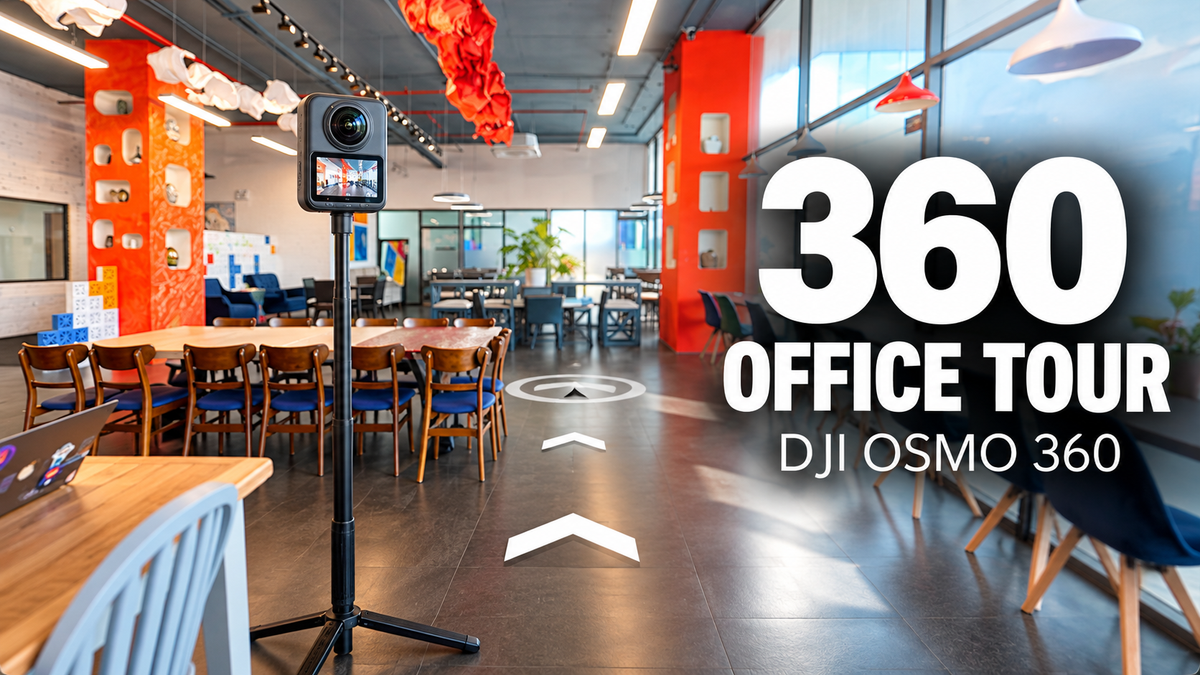
Creating an interactive 360° virtual tour doesn't have to be complicated. With a 360 camera and the right software, you can turn a collection of panoramic photos into a walkthrough experience where visitors can explore a space as if they were actually there.
In this tutorial, we'll show you how we created a 360 walkthrough tour for an office using the DJI Osmo 360 and PanoCool, from capturing panoramic photos to automatically connecting them with AI and adding interactive information.
For this project, we captured just 15 panoramic photos around an office. Using PanoCool's AI Auto Connect, we turned them into an interactive walkthrough tour without manually linking each photo.
1. Capture 360° Photos with DJI Osmo 360
The first step is to capture panoramic photos throughout the office.
For this project, we used the DJI Osmo 360, mounted on a pole with a small tripod. This setup makes it easy to position the camera at different locations while keeping a consistent shooting height.
Choose the right camera positions
Walk around the office and place the camera at different spots, such as the entrance, hallways, workspaces, meeting areas, and other interesting corners.
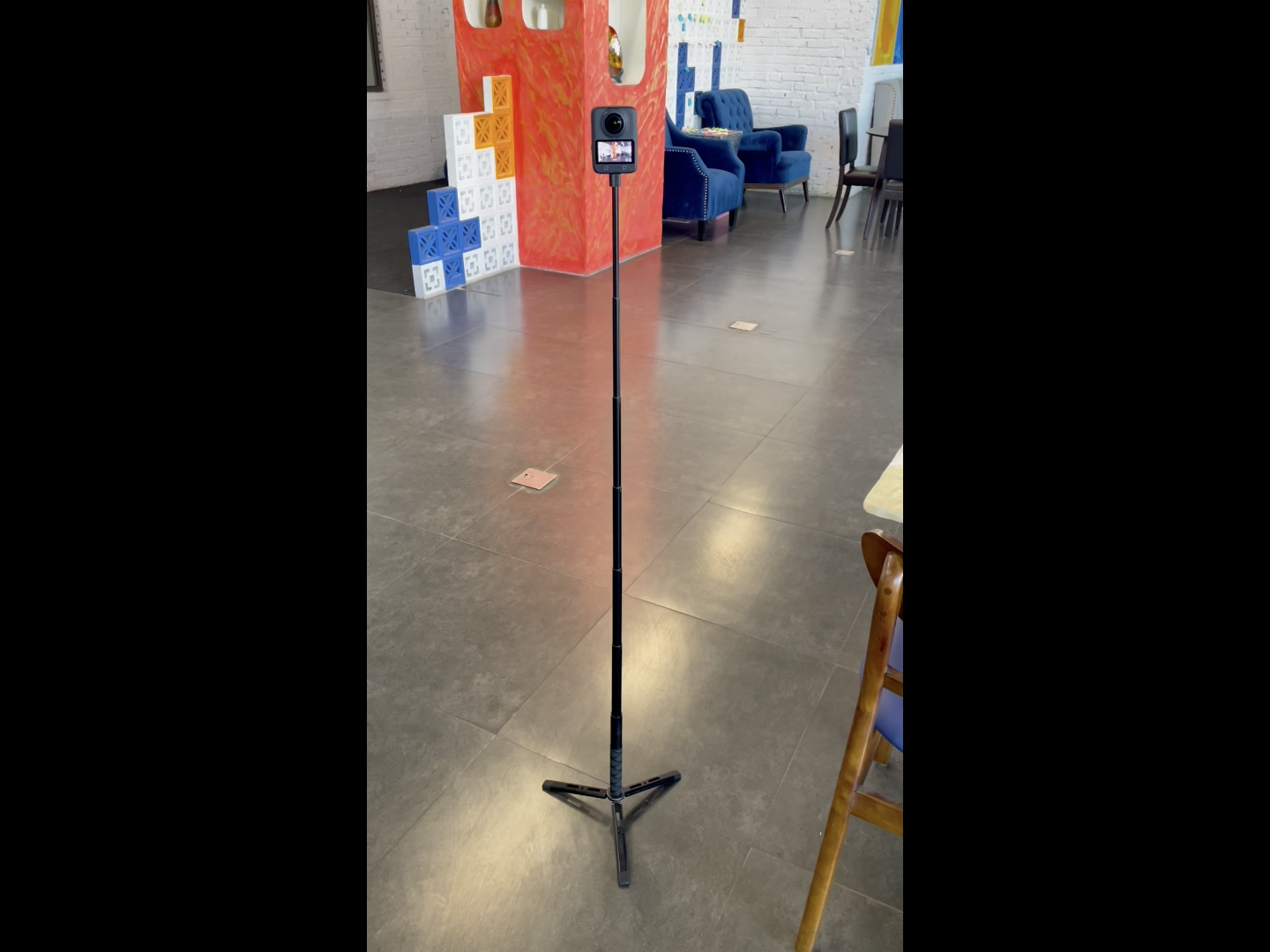
The key is to keep the camera positions reasonably close together.
A good starting point is to place each camera position just a few walking steps apart. You don't want them too close, but you also don't want large gaps between photos.
Each photo should have enough visual overlap with nearby photos. This helps AI understand how the different scenes connect and creates a more natural walkthrough experience.
For our office, we captured 15 photos to cover the main areas.
Camera settings and remote capture
We used the DJI Osmo 360 in panoramic photo mode, with 120MP resolution and automatic exposure settings.
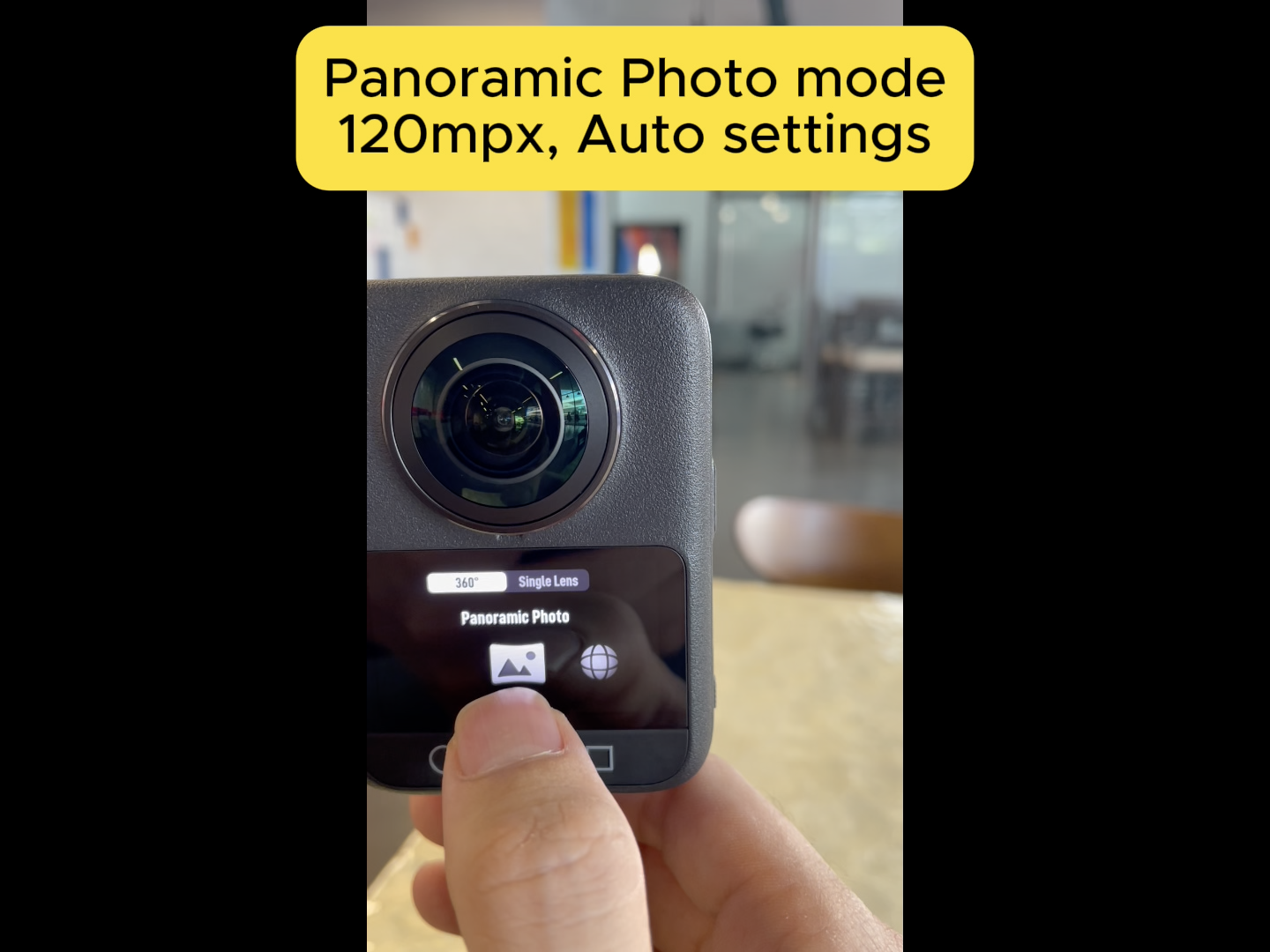
To avoid appearing in the photos, we connected the camera to a smartphone using the DJI Mimo app.
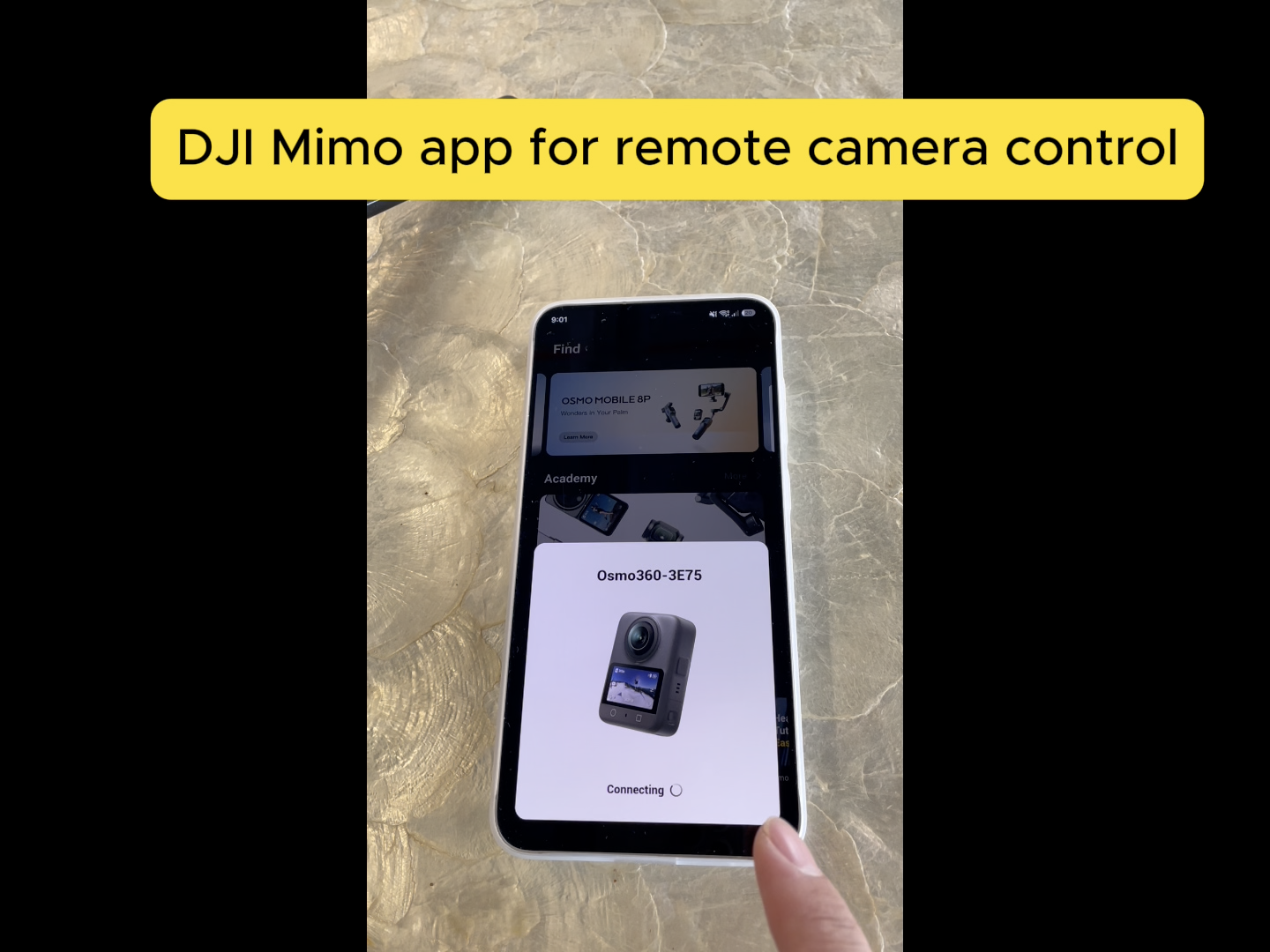
The app lets you preview the camera view and remotely trigger the shutter. This means you can position the camera, move out of sight, and take the photo from your phone.
Once all the photos are captured, connect the camera to your computer using a USB-C cable and copy the panoramic photos.
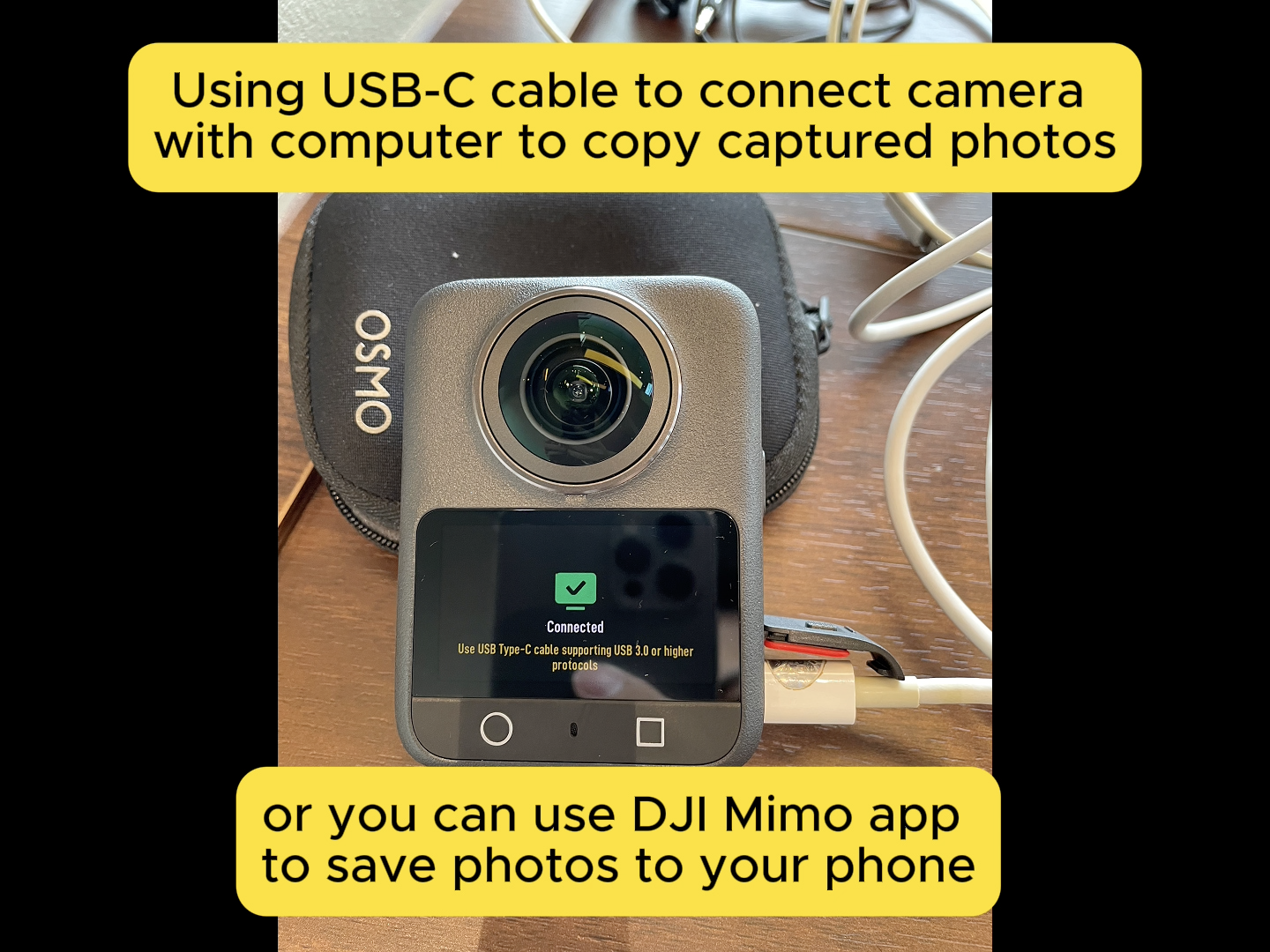
Now they're ready for the next step.
2. Clean Up Your 360° Photos with AI
This step is optional, but a little retouching can make your virtual tour look much cleaner and more professional.
For example, you might want to remove people, vehicles, the camera tripod, or other distracting objects.
We used PanoCool Retouch, an online 360° photo editor with AI-powered object removal.
Here's how it works:
- Open PanoCool Retouch and drag your panoramic photo into the editor.
- Click AI Edit and select the area you want to change.
- Enter a prompt describing what you'd like the AI to do.
- Click Make It to process the selected area.
- Review the result and export the edited photo.
For one of our photos, we wanted to remove some people and a vehicle. We simply selected the area and entered:
"Remove all people and vehicles."
After the AI edit, those unwanted objects were removed from the scene.
We also cleaned up the tripod visible at the bottom of several photos.
Unlike editing an ordinary flat photo, working with a 360° panorama requires preserving its panoramic format so it still displays correctly in a 360 viewer. PanoCool Retouch is designed specifically for this workflow.
Once your photos are ready, export them and move on to creating the tour.
3. Upload Your Photos to PanoCool Virtual Tour Studio
Now comes the fun part: turning those 15 panoramic photos into an interactive walkthrough.
Head over to PanoCool and click Start Creating to open PanoCool Virtual Tour Studio.
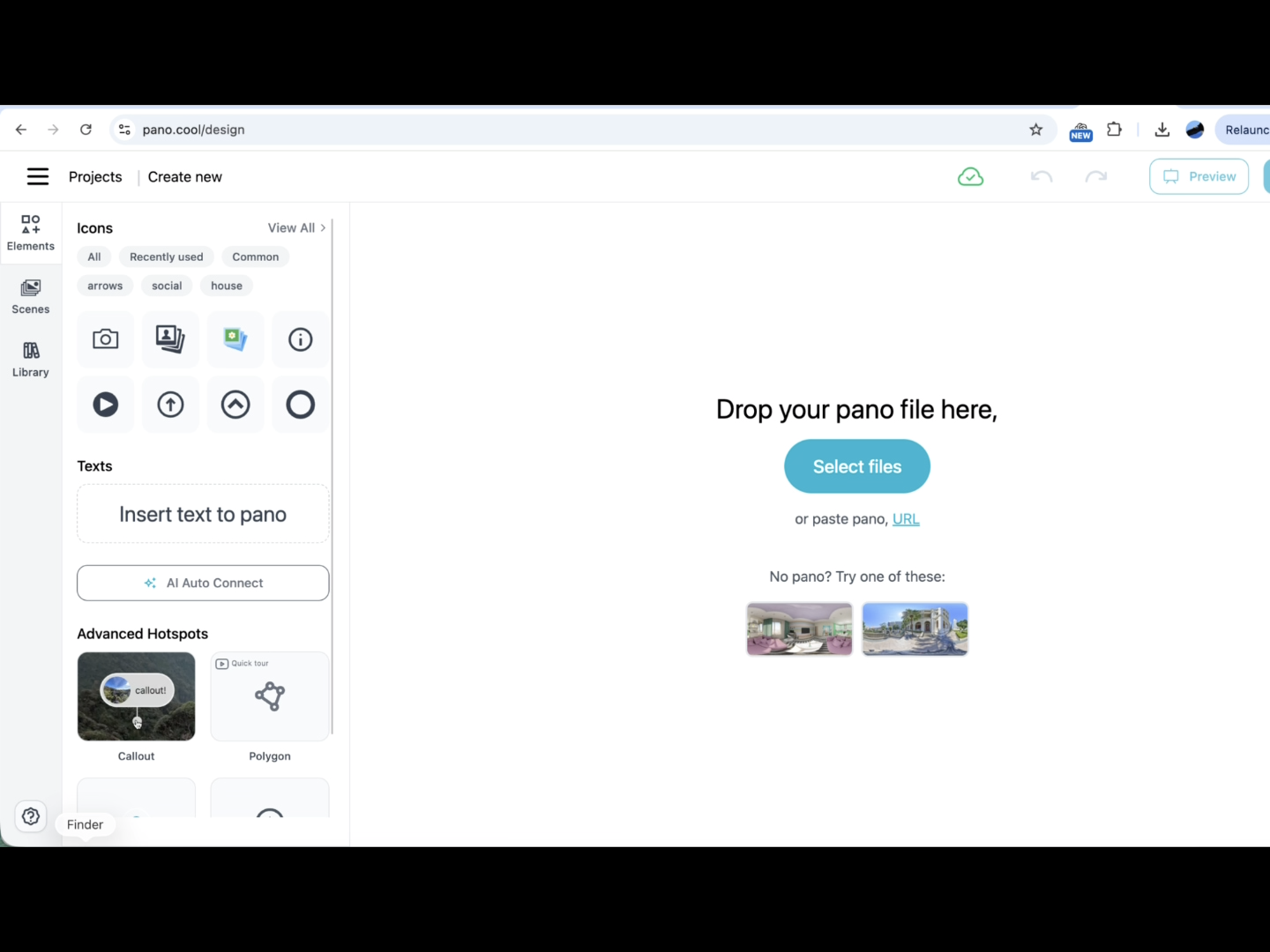
Drag and drop all your 360° photos into the Studio.
Once uploaded, you can click any photo and drag around to explore the scene in full 360 degrees.
You can also open the Scenes tab to see all your uploaded photos and switch between them.
At this point, you have a collection of 360° scenes. But they're not connected yet.
That's where AI Auto Connect comes in.
4. Automatically Connect 360° Photos with AI
Traditionally, creating a walkthrough virtual tour means manually positioning every scene and adding links between them.
For a tour with many photos, this can take quite a bit of time.
PanoCool AI Auto Connect simplifies the process by automatically analyzing indoor 360° photos, estimating their positions, and connecting them into a navigable walkthrough.
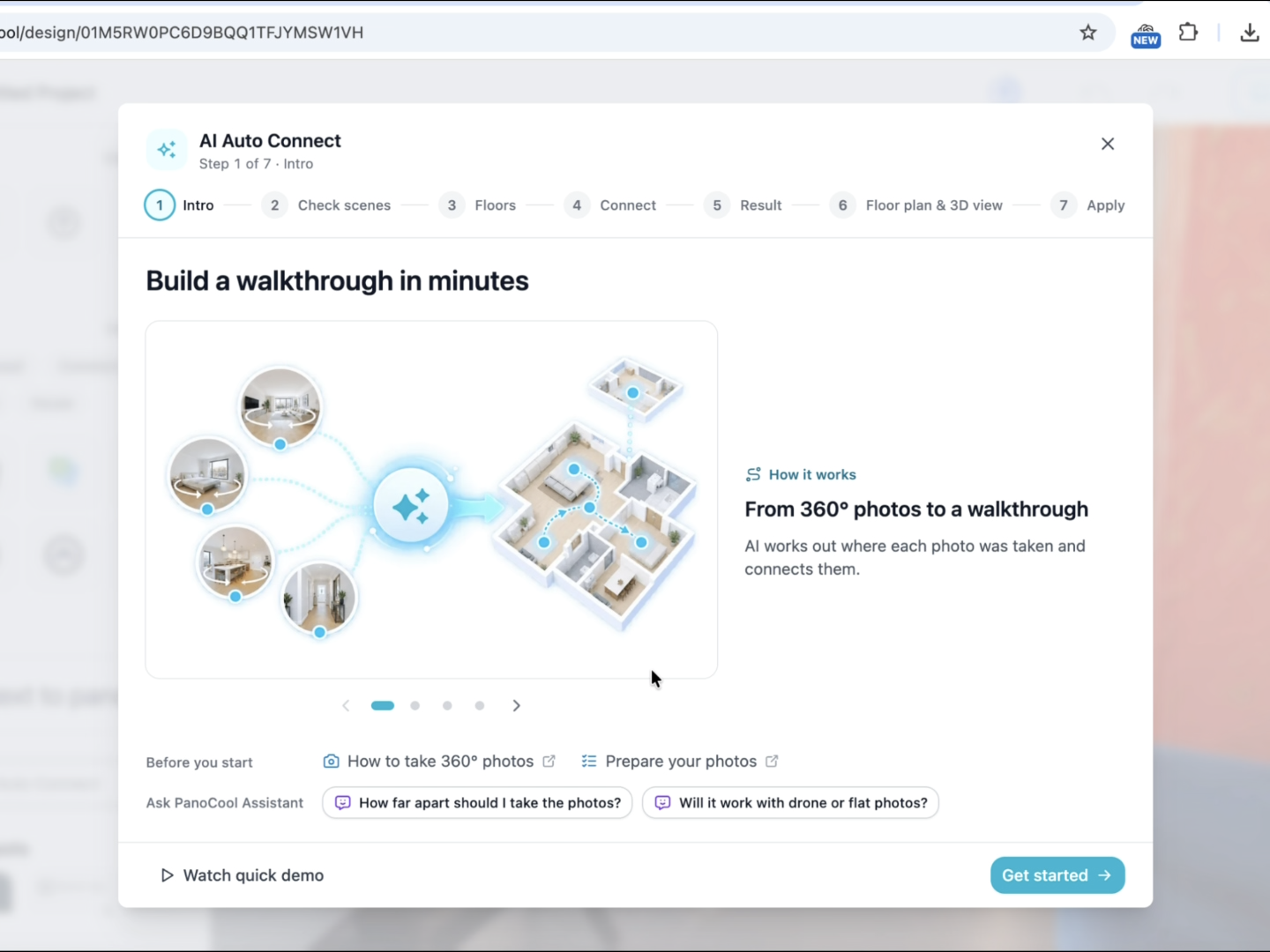
How to use AI Auto Connect
With your photos uploaded to PanoCool Studio:
- Click AI Auto Connect.
- Follow the setup instructions and click Next.
- Select the number of floors in your space.
- Click Start Connecting to begin processing.
For our office, everything is on a single floor, so we selected the one-floor option.
The AI then started processing all 15 photos.
After a few minutes, the process was complete.
PanoCool had automatically positioned the photos on a virtual floor layout and created connections between the scenes.
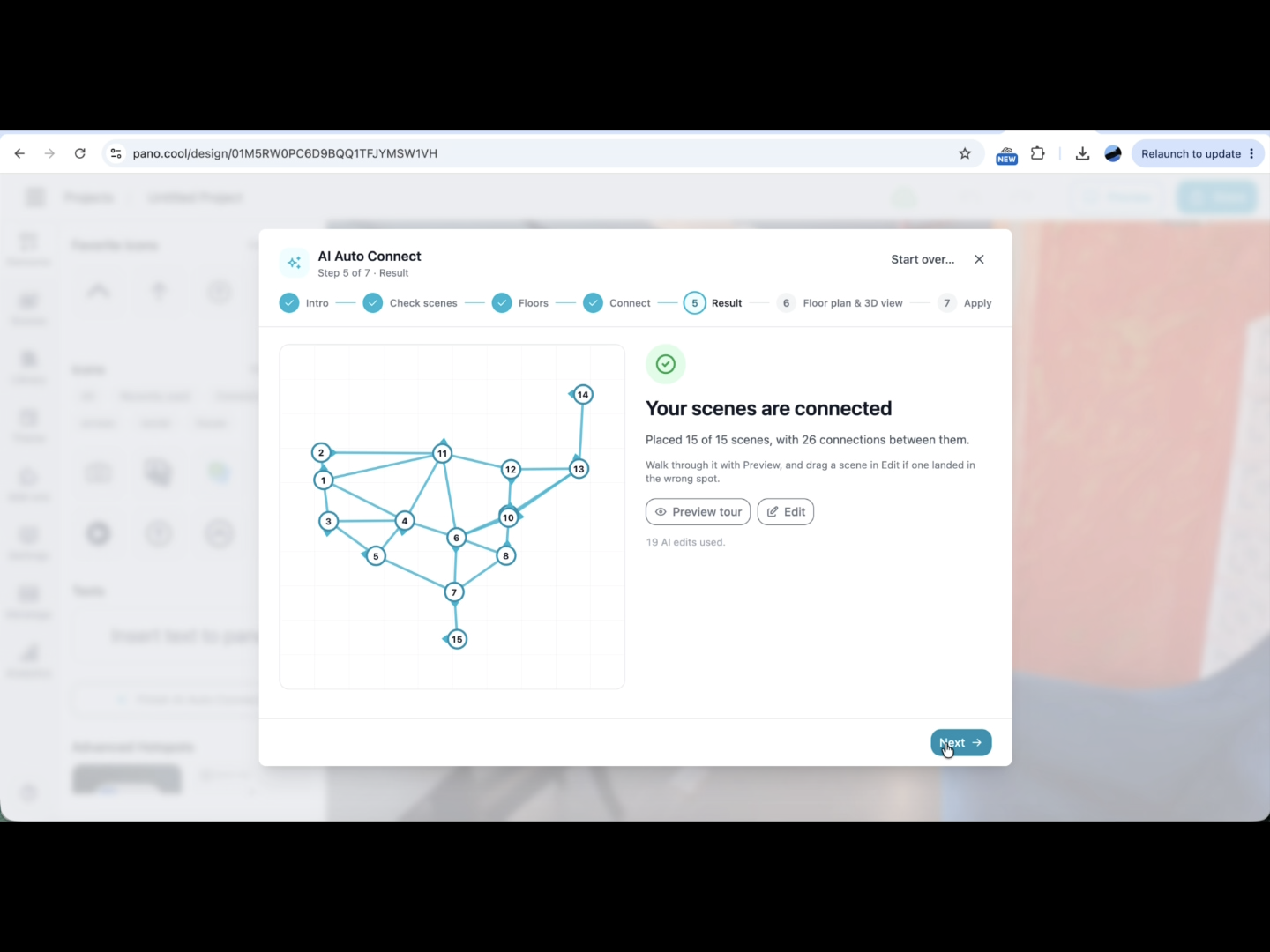
Preview the walkthrough
Click Preview to see the result.
Instead of switching between separate panoramic photos, visitors can now click navigation arrows to move through the office, similar to how they explore places on Google Street View.
They can look around freely in 360 degrees, move into different rooms, and explore the space at their own pace.
And the best part? We didn't have to manually connect any of the 15 photos.
The AI handles the initial positioning and connections, although you can still review and adjust the results if needed.
After previewing, click Next to continue.
PanoCool also offers an optional step to create a floor plan and 3D view. For this particular office tour, we didn't need those additional features, so we simply skipped that step.
Our walkthrough tour was now ready to share.
5. Add Text and Navigation Icons
A walkthrough tour is already useful on its own, but you can make it even better by adding information that helps visitors understand the space.
For example, our office has a restroom that's not immediately obvious from the main hallway.
To make it easier to find, we added a short text label indicating the restroom's direction.
We also added a WC icon in the hallway scene.
These small details help visitors navigate the office and find important areas without needing additional instructions.
You can use the same approach to highlight meeting rooms, reception areas, exits, facilities, or other points of interest.
6. Add a Contact Information Popup
Next, we wanted visitors to be able to find the office's contact information directly inside the tour.
PanoCool lets you create custom menu items that open popups with text and other content.
To add one:
- Open the Theme tab in PanoCool Studio.
- Click the plus icon to add a new menu item.
- Choose a popup and enter your contact information.
- Select a suitable icon.
- Click Save.
Now, when someone explores the tour, they can open the contact menu to find the relevant details without leaving the walkthrough.
This is especially useful for businesses that want to use their virtual tour as part of their website or online marketing.
7. Embed Google Maps and Directions
Another useful addition is an embedded Google Map.
This lets visitors see the office's location and access directions right from the virtual tour.
Here's how we added it:
- Open the office location in Google Maps.
- Click Share, then select Embed a map.
- Copy the provided HTML embed code.
- Return to PanoCool Studio and create another menu popup.
- Choose the option to insert embed code.
- Paste the Google Maps embed code and save.
That's it!
Visitors can now open the map directly inside the tour and use Google Maps to find directions to the office.
8. Share or Embed Your Office Virtual Tour
With all the scenes connected and interactive information added, our office walkthrough tour is complete.
Visitors can now:
- Walk virtually through different areas of the office.
- Look around in full 360 degrees.
- Open the photo album to jump to specific scenes.
- Find useful information through text labels and icons.
- View contact details and office location.
- Access Google Maps for directions.
PanoCool makes it easy to share your finished tour in several ways.
Share a link: Copy the tour's URL and send it to clients, colleagues, or visitors.
Embed on a website: Add the interactive 360° walkthrough to your website so visitors can explore the office without leaving your page.
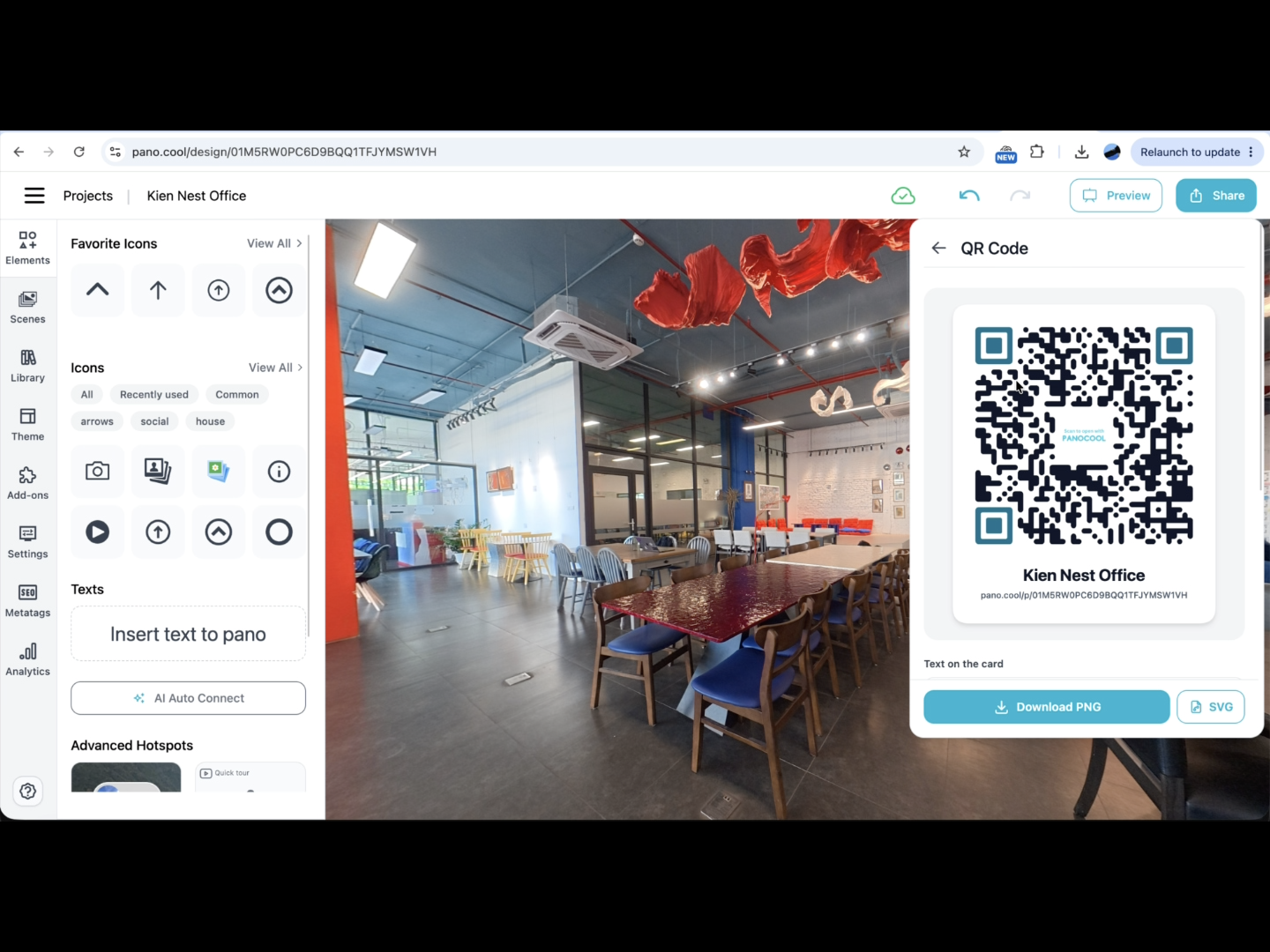
Share with a QR code: Place a QR code on printed materials, signs, or brochures so people can open the tour on their phones.
Where Else Can You Use This Workflow?
Although this tutorial focuses on an office, the same process works for many types of indoor spaces.
You can use DJI Osmo 360 and PanoCool to create:
- Real estate virtual tours: Let potential buyers explore houses and apartments remotely.
- Office and coworking space tours: Introduce your workplace to clients, job applicants, or prospective tenants.
- Hotels and resorts: Showcase guest rooms, common areas, and facilities.
- Restaurants and cafés: Give customers a preview of the interior and atmosphere.
- Showrooms and retail spaces: Help visitors explore products and layouts.
- Schools and training centers: Create virtual campus and facility tours.
AI Auto Connect is particularly useful for indoor spaces where nearby photos share recognizable visual details.
Final Thoughts
For this office project, we used just 15 panoramic photos captured with a DJI Osmo 360.
After a little AI retouching, we uploaded them to PanoCool and used AI Auto Connect to build an interactive walkthrough in just a few minutes of processing.
We then added simple navigation labels, a contact popup, and an embedded Google Map to make the tour more useful for visitors.
The result is a shareable 360° office tour that anyone can explore from their computer or phone.
If you already own a DJI Osmo 360 or another 360 camera, this is a practical way to turn your panoramic photos into something more interactive.
Ready to create your own 360° walkthrough tour?
Visit PanoCool to get started, or try PanoCool Retouch to clean up your panoramic photos before building your tour.