Create Custom QR Codes for Your Virtual Tours
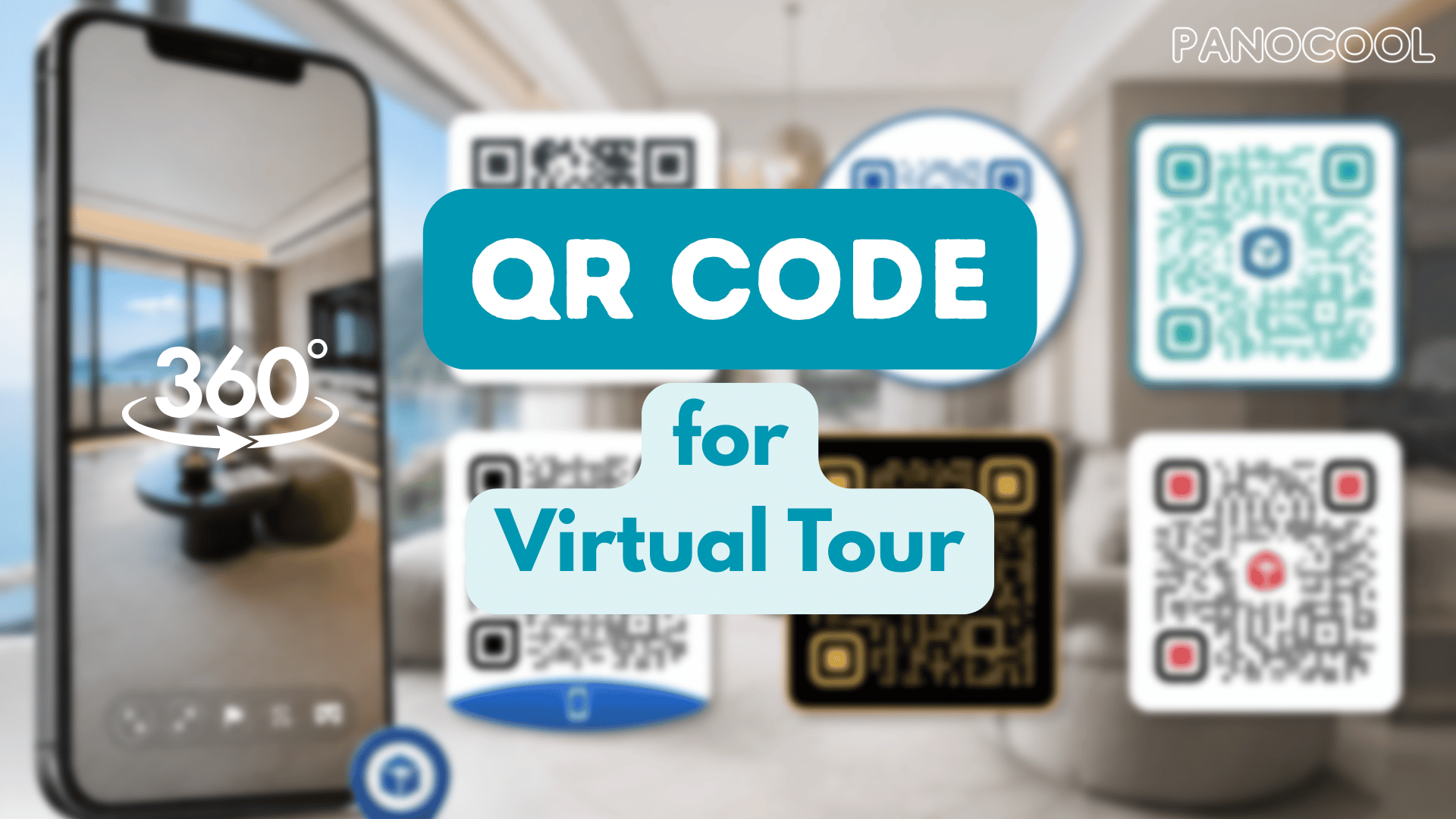
Sharing your virtual tours in PanoCool is incredibly straightforward, but you can make your physical marketing materials stand out by using our built-in AI QR code generator. Instead of sharing a standard black-and-white link, you can create stylized, eye-catching QR codes that match your brand or project aesthetic directly from your dashboard.
Follow this step-by-step guide to design and download custom QR codes for your brochures, signage, or business cards.
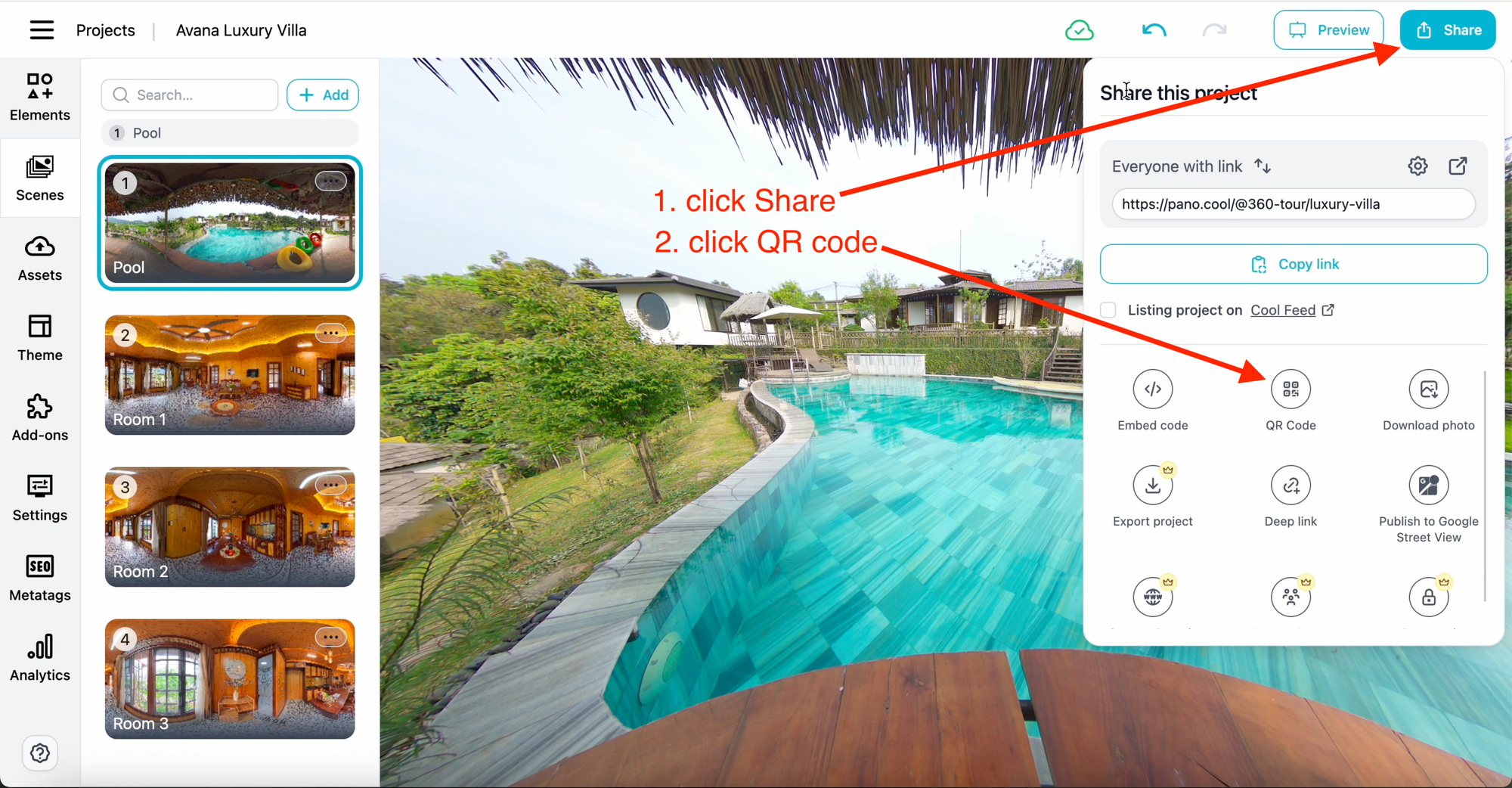
Step 1: Open the QR Code Menu
- Log in to your PanoCool dashboard and open the virtual tour you want to share.
- Click on the Share menu or look for the QR Code option.
- A standard, functional QR code will instantly appear on your screen. If you just need a quick, simple code, it is immediately ready to download.
Step 2: Explore Custom Styling Options
To move away from the traditional clinical look and make your code more attractive:
- Click the More QR Code Styles button.
- A creative panel will expand, offering you several ways to customize the design:
- Preset Samples: Browse and select from pre-designed aesthetic styles.
- Text Prompts: Type specific instructions or descriptive prompts into the input field to let the AI generate a unique texture or style for the code.
- Custom Style / Reference Image: Select the Custom Style option to upload your own reference image, giving you absolute control over branding and visual alignment.
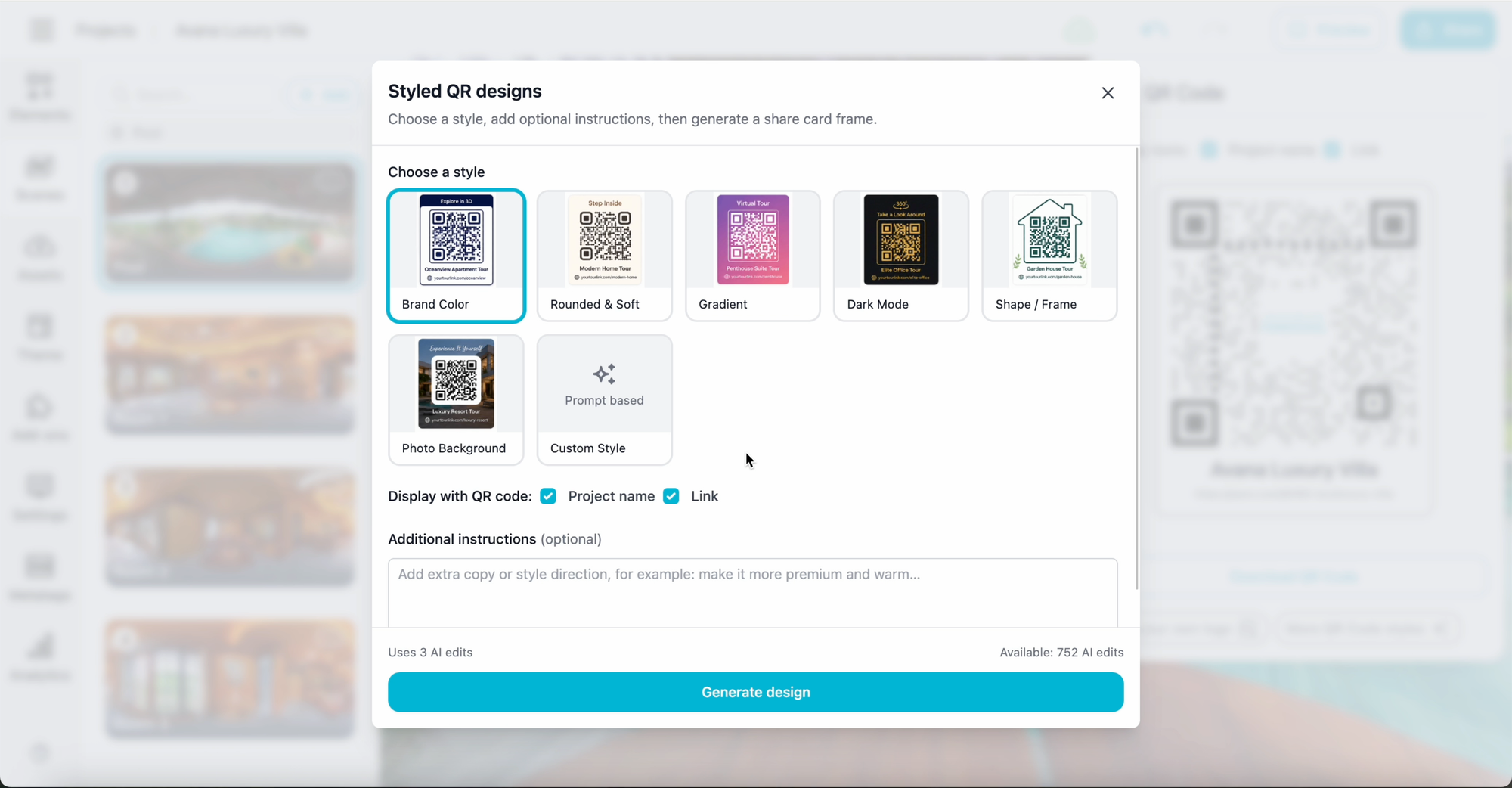
Step 3: Select a QR style
For a highly professional look that merges your imagery with the data matrix:
- Select an option from the style menu.
- Click Generate Design.
- Wait a few seconds for the AI engine to process and blend the elements together.
Step 4: Fine-Tune the Layout
Once your stylized design is generated, you can perfect its composition:
- Locate the built-in layout adjustments.
- Use the controls to change the size of the QR code within its artistic frame. This ensures your code is visually balanced and highly scannable for mobile devices.
Step 5: Export Your Finished Code
- Review your design to ensure you are happy with the visual balance.
- Click the Download QR Code button to save the high-resolution file to your device.
Your custom asset is now ready to be printed on marketing flyers, real estate lawn signs, or digital portfolios!
Try PanoCool now!: https://pano.cool
Youtube tutorial:
For additional context, see create a QR code online.