How to Fix Overexposed Windows in 360 Photos with AI
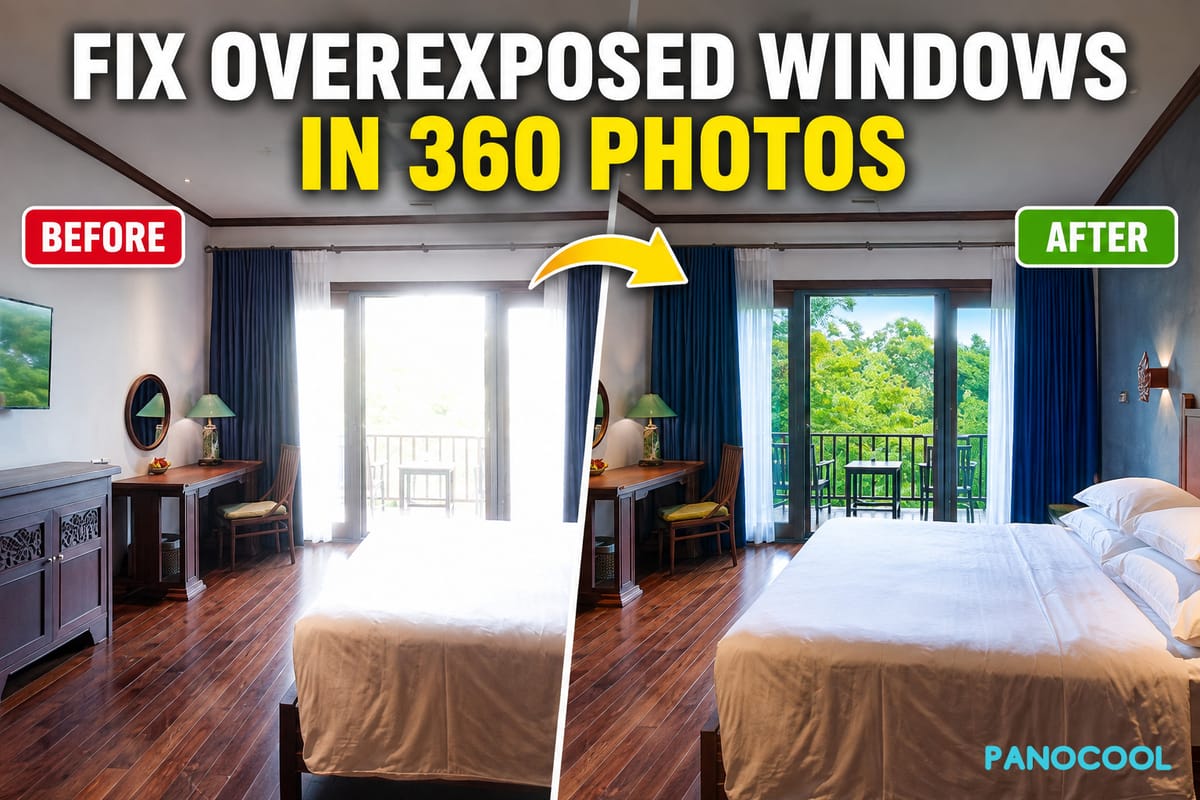
If you capture indoor 360° photos, you’ve probably encountered this problem: the room looks properly exposed, but the windows are extremely bright and the outdoor details are almost completely lost.
This is especially common when shooting interiors with an Insta360 or other 360° camera. The difference in brightness between a darker indoor space and bright daylight outside can be difficult for the camera to capture in a single shot.
Fortunately, you can use AI to quickly fix overexposed windows in your 360 photos without manually masking and editing them in traditional photo-editing software.
In this tutorial, I’ll show you how to do it using PanoCool Retouch.
Why Do Windows Look Overexposed in 360 Photos?
When you take a 360 photo inside a room during the daytime, your camera needs to capture two very different lighting conditions at the same time.
The interior may be relatively dark, while the scene outside the windows can be many times brighter.
If the camera exposes the image for the room, the windows can become extremely bright or completely white. This is often called overexposure or blown-out highlights.
For real estate photography and virtual tours, this can make an otherwise good 360 photo look less professional.
Instead of replacing the entire image, we can try using AI to improve just the affected window areas.
Step 1: Open Your 360 Photo in PanoCool Retouch
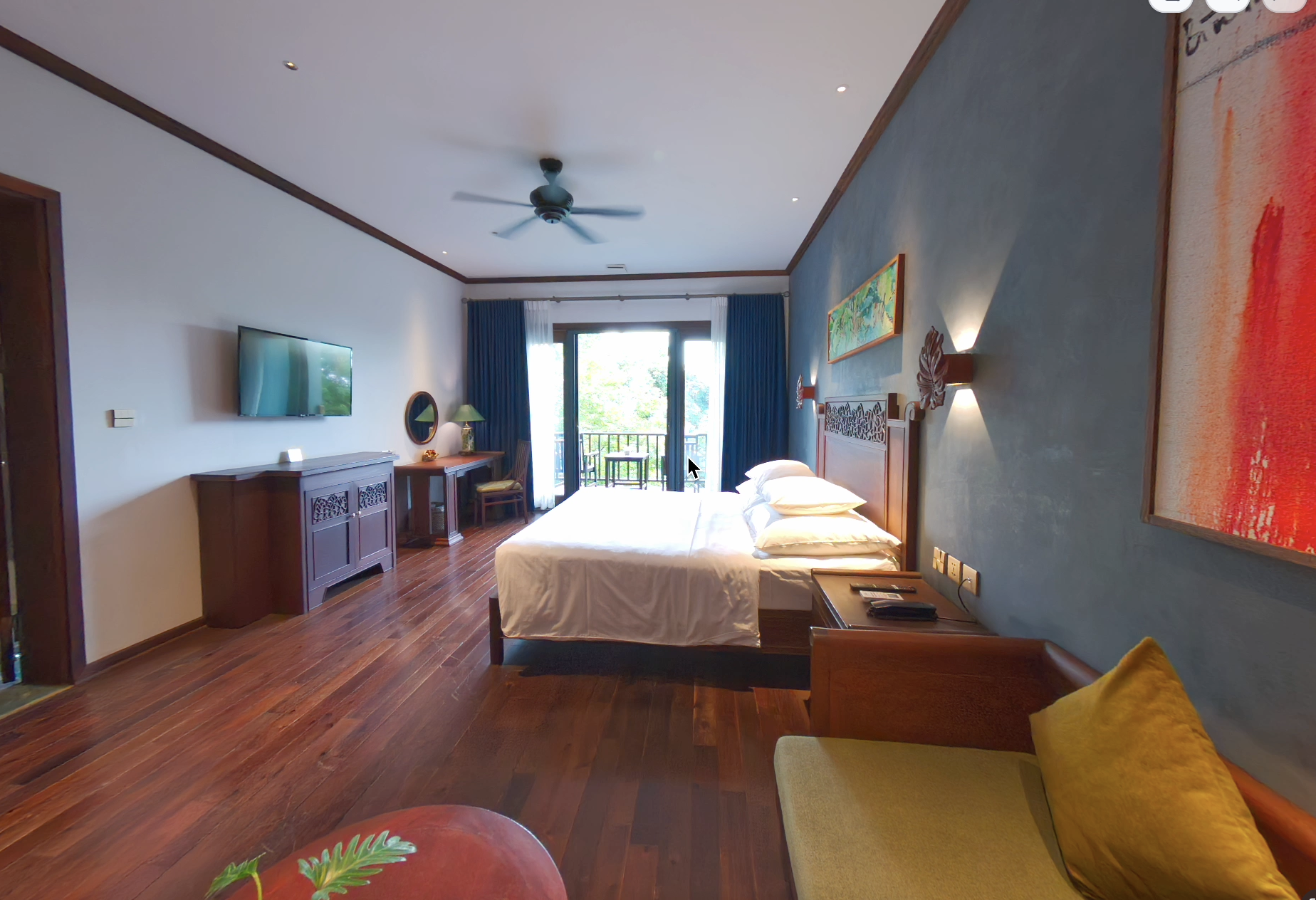
Go to PanoCool Retouch at pano.cool and select the 360 photo you want to edit.
The editor is designed specifically for working with 360° photos, so you can navigate around the panorama and edit areas directly from the 360 view.
Step 2: Select the Overexposed Window
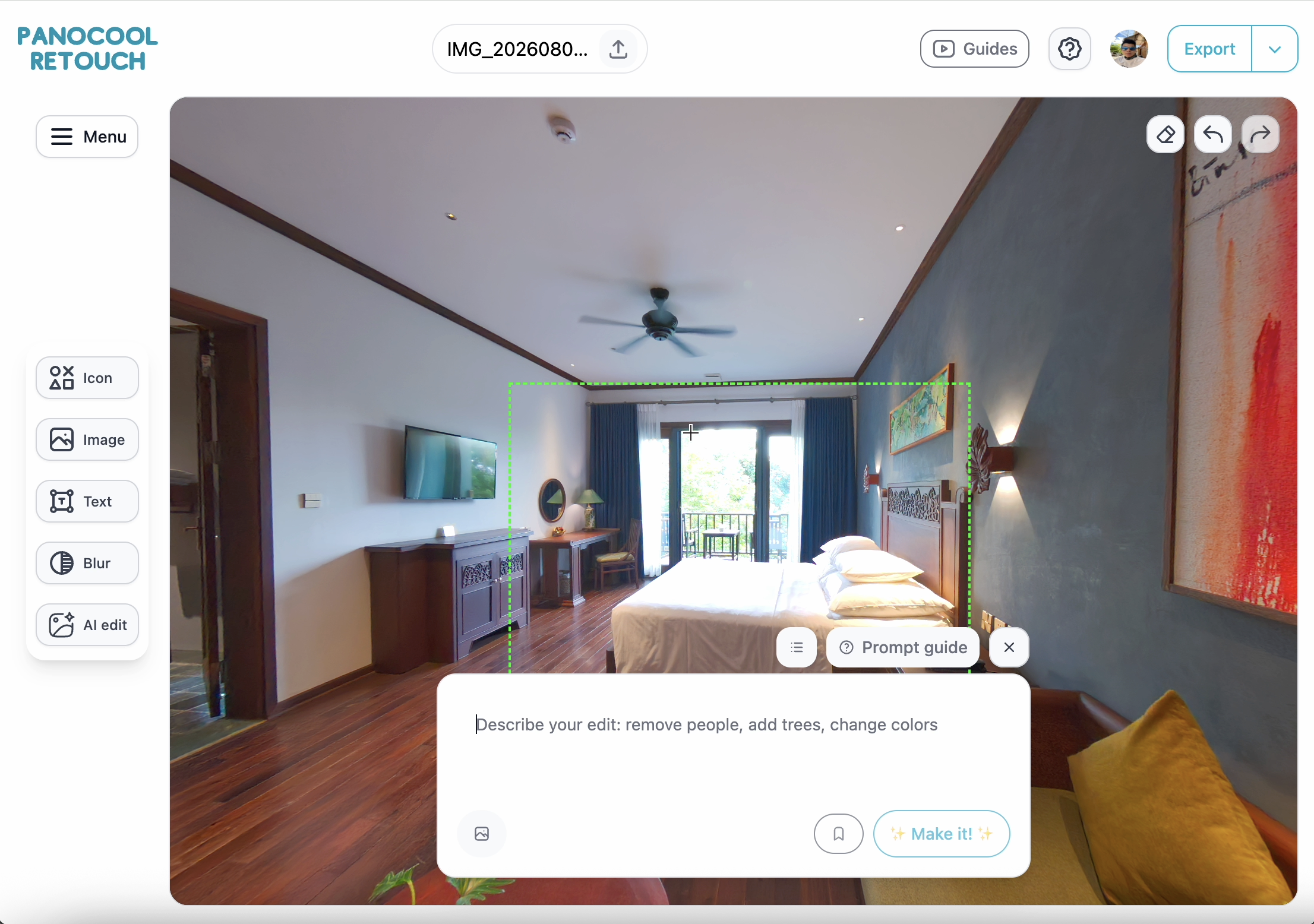
Click AI Edit.
Next, drag your mouse over the window or bright outdoor area that you want to correct.
You don't need to edit the entire panorama. Just select the area where the exposure needs improvement.
Step 3: Use the “Fix Overexposure Windows” Prompt
Once you've selected the area, the AI prompt window will appear.
You could write your own editing instructions, but PanoCool Retouch also includes saved prompts for common 360 photo editing tasks.
Click Saved Prompts and find:
“Fix overexposure windows”
Click Use, and the appropriate AI editing prompt will automatically be added for you.
Now click Make it.
The AI will process the selected area while keeping the rest of your 360 photo unchanged.
Wait a few seconds for the result.
Step 4: Check the Result
Once processing is complete, compare the edited window with the original.
You should see a more naturally exposed outdoor scene, with improved colors and more visible details instead of an excessively bright window.
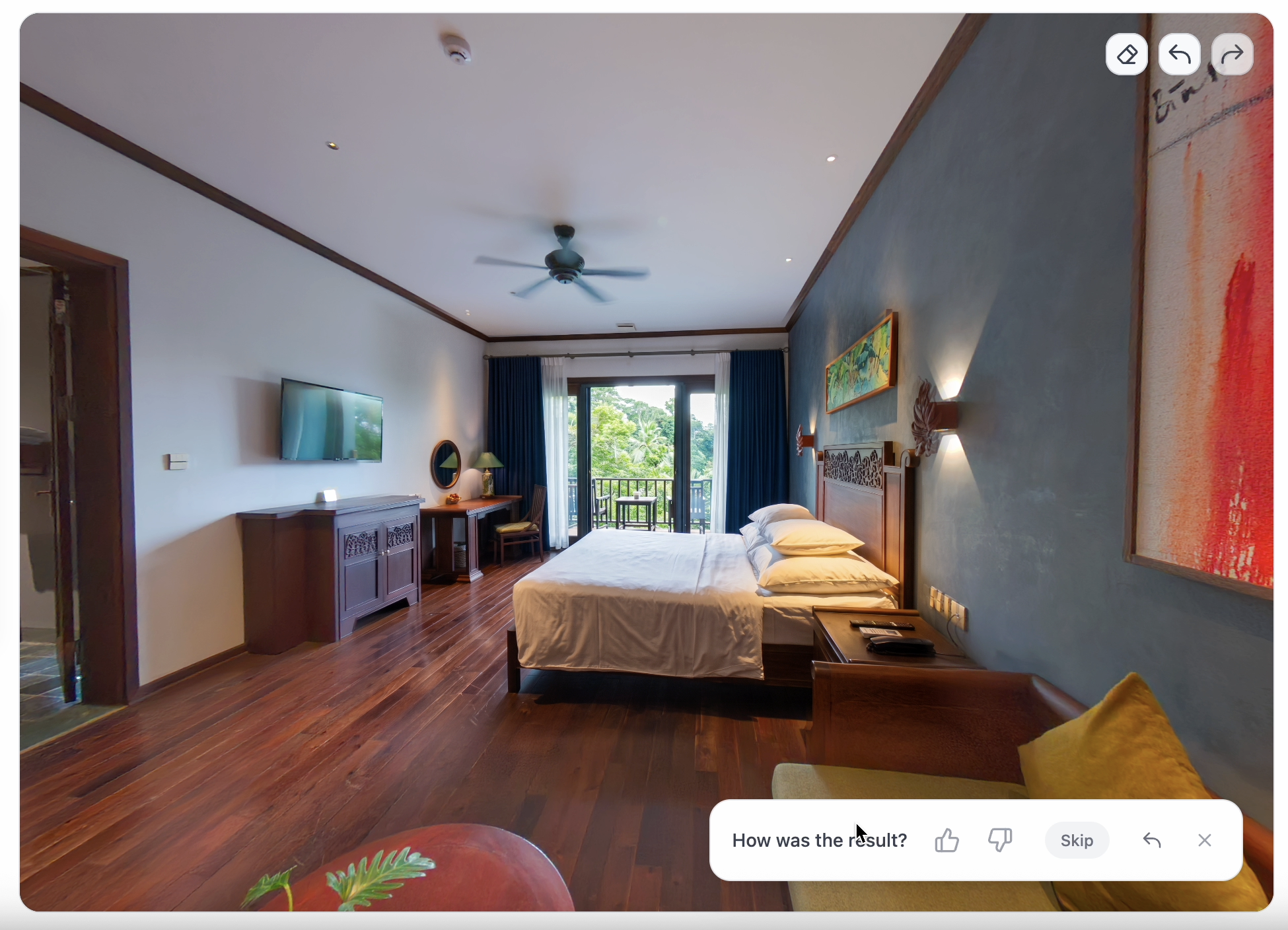
This can make a big difference in interior 360 photography, particularly for:
- Real estate virtual tours
- Hotels and resorts
- Apartments and vacation rentals
- Restaurants and cafés
- Architecture and interior design
- Commercial property tours
Step 5: Export Your Retouched 360 Photo
Once you're happy with the result, click Export.
PanoCool will process the panorama and prepare the retouched 360 photo for you.
That's it, your 360 photo is ready to use in a virtual tour, share online, or continue editing.
More Than Just Exposure Correction
The same AI Edit workflow in PanoCool Retouch can also be useful for cleaning up other common problems in 360 photography.
For example, you can use AI editing to remove unwanted people, clean up objects left in a room, remove the photographer or tripod, and improve distracting areas of a panorama.
This means you can handle many common 360 photo retouching tasks without having to move back and forth between multiple editing applications.
Final Result
Overexposed windows are one of the most common challenges when shooting indoor 360 photos, especially when there's strong daylight outside.
With PanoCool Retouch, the workflow is simple:
Select the window → choose the saved prompt → let AI fix the exposure → export your 360 photo.
It only takes a few steps and can make your interior panoramas look much cleaner and more professional.
Try PanoCool Retouch at https://pano.cool/pano-editor and see how it works with your own 360 photos.