PanoCool Library: Reuse Assets, Styles, Content, and Elements
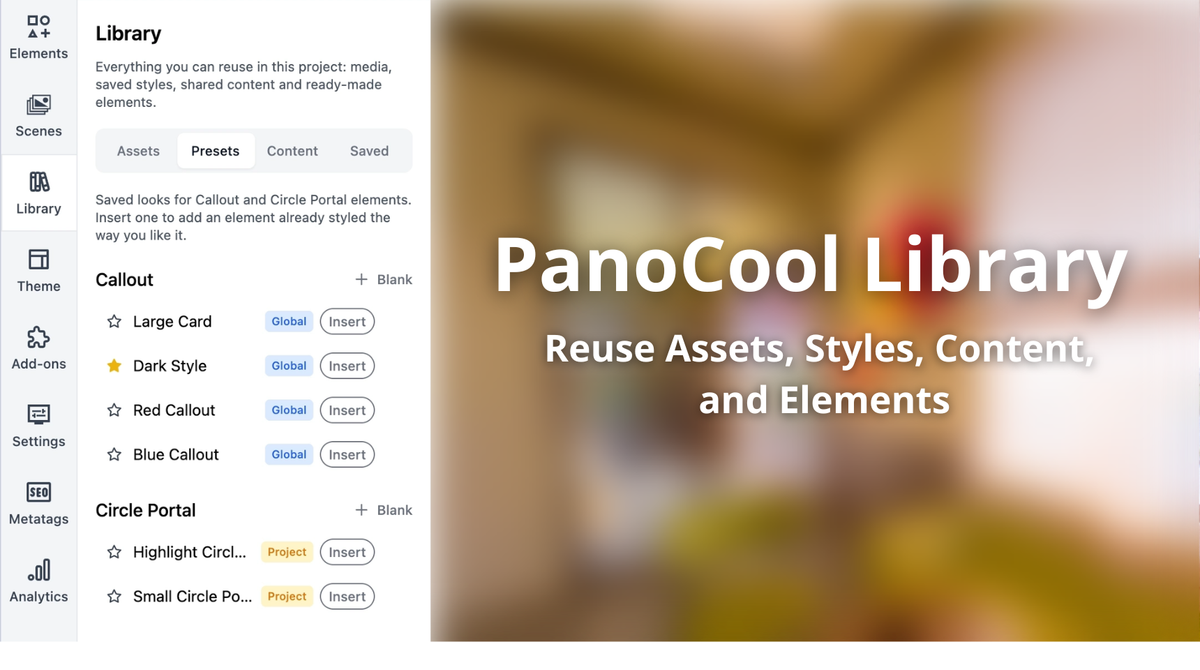
When building a virtual tour, you often reuse the same things again and again: logos, images, videos, styled callouts, popups, galleries, or even complete interactive elements.
The Library gives you one place to keep all of these reusable items and quickly add them to any scene.
Previously called Assets, the Library has now expanded into a more complete reuse system inside the PanoCool editor.
Where to Find the Library
Open your project in the editor and click the Library tab on the left side.
Inside, you’ll find four sections:
- Assets — images and videos you upload
- Presets — reusable styles for supported elements
- Content — reusable popups and photo galleries
- Saved — complete elements you’ve saved for later use
Simply select an item from the Library to insert it into the center of your current scene.
PanoCool also remembers the section you used most recently, so the next time you open the Library in the same browser, you can continue where you left off.
Assets: Your Account-Wide Media Library
The Assets section is available on all plans and works as your central media library.
Any image or video uploaded here can be reused across your PanoCool projects, so you don’t need to upload the same logo, icon, floor plan, promotional image, or video again and again.
You can upload files using the upload button or simply drag files directly into the Library panel.
Supported media includes:
- JPEG
- PNG
- GIF
- MP4
Other common image formats, including WebP and HEIC/HEIF images from Apple devices, are automatically converted to JPEG during upload.
You can search for assets by filename and quickly filter the library to show All, Images, or Videos.
Clicking an asset immediately adds it to the current scene as an image or video hotspot.
You can also right-click an asset, or open its three-dot menu, to rename or delete it.
Presets: Reuse Your Favorite Element Styles
Available on the Cool and Super Cool plans, Presets help you keep the design of your virtual tour consistent.
For example, if you create a Callout with a particular font, shape, color, border, and layout, you can save that design as a preset instead of recreating it every time.
Presets are currently available for:
- Callout
- Circle Portal
When adding a preset from the Library, choose Insert to create the element using the saved style.
You can also choose Blank if you want to add the same element with its standard default appearance.
Set Your Default Style
A preset marked with a star is the default style for that type of element.
Once a default is selected, PanoCool automatically applies it when you add that element from the Elements tab.
This is especially useful when you want every Callout or Circle Portal in a project to follow the same visual style.
Presets can be either:
Global — available across your projects
or
Project — intended for the current project
If both exist, the project-specific default takes priority.
You can switch the scope directly from the Global / Project badge in the Library.
Content: Reuse Popups and Galleries
The Content section, available on the Super Cool plan, lets you manage reusable popups and photo galleries inside a project.
This is useful when the same information needs to appear in several places.
For example, you might create:
- A popup introducing a hotel room type
- A restaurant menu
- A property information panel
- A photo gallery for a facility
- A contact or booking popup
Instead of creating multiple separate copies, you can create the content once and reuse it throughout the tour.
Use the search field or filter between:
- All
- Popups
- Galleries
Each item includes a preview. Galleries also show their number of photos, while reusable popups can show how many places in the project currently use them.
Click Insert, and PanoCool adds an icon element linked directly to that reusable content.
The biggest advantage is that the content remains connected.
If you update the original popup or gallery later, every element that uses it is updated too.
This makes managing larger tours much easier and helps prevent outdated or inconsistent information.
Saved: Reuse Complete Interactive Elements
Sometimes you want to reuse more than just a style.
You may have already created an element with exactly the appearance and behavior you need, including:
- Display settings
- Images or videos
- Click actions
- Hover actions
- Translations
- Links
- Scene navigation
With the Saved section, available on the Cool and Super Cool plans, you can save the complete element and insert it again later.
Saved elements belong to the current project, so they are especially useful for repeated components within the same virtual tour.
For example, you could save:
- A customized navigation button
- A branded information hotspot
- A room information panel
- A specific call-to-action button
- A scene navigation element
- A multilingual information element
Recently used saved elements appear first, and you can search by name whenever your library becomes larger.
Saved items can also be renamed or deleted directly from the Library.
If a saved element contains a Go to scene action and that destination scene has since been deleted, PanoCool displays a warning icon so you can easily spot the broken reference.
Saved Elements Are Independent Copies
When you insert an item from the Saved section, PanoCool creates an independent copy.
This means you are free to change the new element without affecting the original saved version.
For example, you could save a standard information hotspot, insert it into several scenes, and then change the text or action of each individual copy as needed.
This is different from reusable Content, where all usages remain connected to the same popup or gallery.
A simple way to think about it is:
Saved elements = reusable templates
Reusable Content = shared content that stays synchronized
How to Save an Element to the Library
You can save an existing element directly from the panorama.
Right-click the element and select Save to library, then give it a name.
That element will now appear in the Saved section and can be reused elsewhere in the project.
The same right-click menu also gives you faster access to your recently used saved elements.
This means you can insert commonly used elements directly at the position of your cursor without opening the full Library.
If you need something else, choose Browse library to open the complete Saved list.
If an element contains an image or video that is still uploading, PanoCool will temporarily prevent you from saving it and show a Still uploading message. Once the upload has finished, you can save it normally.
Build Tours Faster and Keep Them Consistent
The Library is designed to reduce repetitive work.
Instead of recreating the same assets, styles, popups, galleries, or interactive elements for every scene, you can build them once and reuse them whenever you need them.
Use Assets for reusable media, Presets for consistent styling, Content for information that should stay synchronized, and Saved for complete elements you want to use as templates.
For small projects, this can save a few clicks.
For large virtual tours with dozens or hundreds of scenes, it can make the entire editing workflow much faster and easier to manage.
Try PanoCool today!