Zoom-Based Hotspot Visibility for Virtual Tour
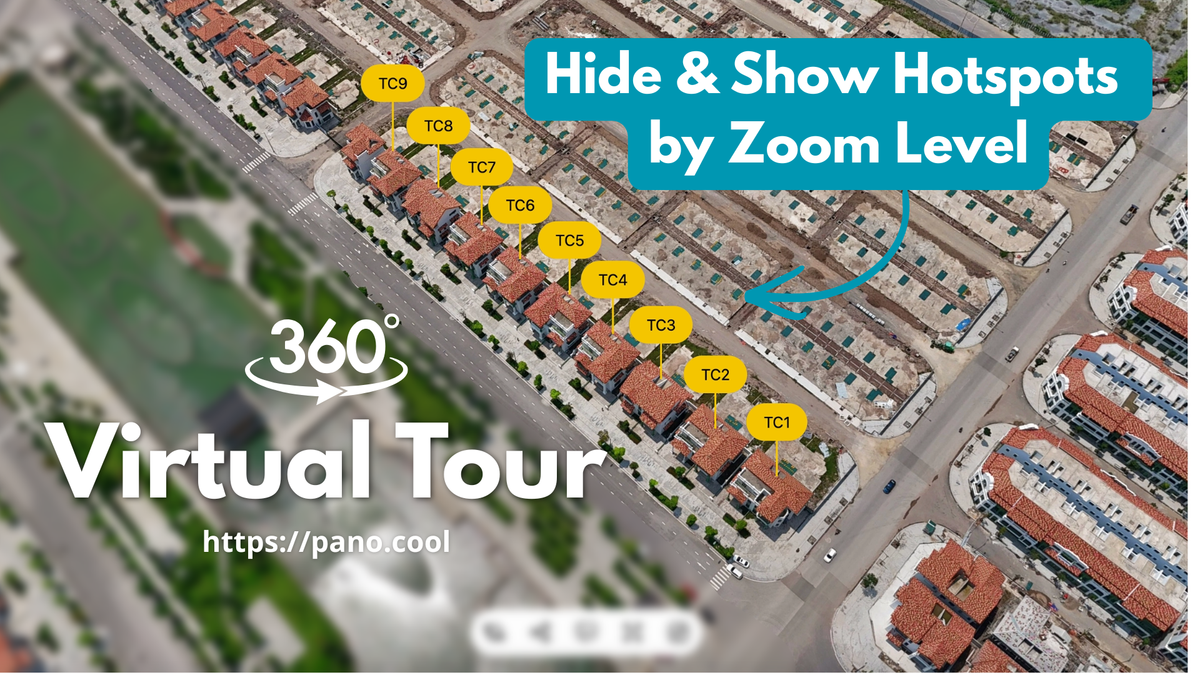
When building interactive 360 virtual tours, particularly large-scale aerial views for real estate, construction, or hospitality, balancing information density with clean visuals is critical. While hotspots are essential for conveying property details, an excess of static icons can quickly clutter the screen, causing user fatigue and ruining immersion.
PanoCool’s Zoom-Based Hotspot Visibility feature solves this problem by allowing creators to establish a dynamic information hierarchy. By setting specific visibility ranges, hotspots automatically fade or appear based on the visitor's zoom level. This ensures that micro-details (such as interior floor plans, specific room features, or property lines) are hidden during a macro view and only reveal themselves when a viewer zooms into a specific zone.
Key Capabilities
- Dynamic Decluttering: Maintain a clean, professional aesthetic on wide-angle and drone-captured panoramas.
- Contextual Information: Guide viewers naturally from a high-level overview down to granular, detailed data points.
- Universal Support: Available for all hotspot types, including icon, image, video, text, HTML, and polygon configurations.
Step-by-Step Configuration
Follow these steps to apply zoom-based constraints to a hotspot:
- Select the Hotspot: Within the PanoCool Virtual Tour Studio, click on the specific hotspot you wish to configure.
- Open Visibility Settings: On the contextual Hotspot Toolbar, click the Visibility icon (represented by the eye icon).
- Change the Visibility Mode: By default, all hotspots are set to Always show. Toggle the setting to Show at certain zoom levels.
- Adjust the Zoom Range:
- Use the dual-handle slider to define the precise visibility window.
- The slider scales from 0% (fully zoomed out) to 100% (fully zoomed in).
- Alternatively, you can type explicit percentage values directly into the minimum and maximum input fields.
Note: You can using mouse wheel to change the current zoom level of the viewer.
- Preview the Behavior: Deselect the hotspot or publish the project to see the smooth hide/show transition as it will appear to your visitors.
Note on Editor Behavior: While editing, the currently selected hotspot will always remain visible on your canvas, even if your current view is outside its active zoom range. This prevents you from losing track of your assets during configuration. Unselect the hotspot to test the visibility trigger.
Try PanoCool now!