Set up a white-label domain for all your virtual tours
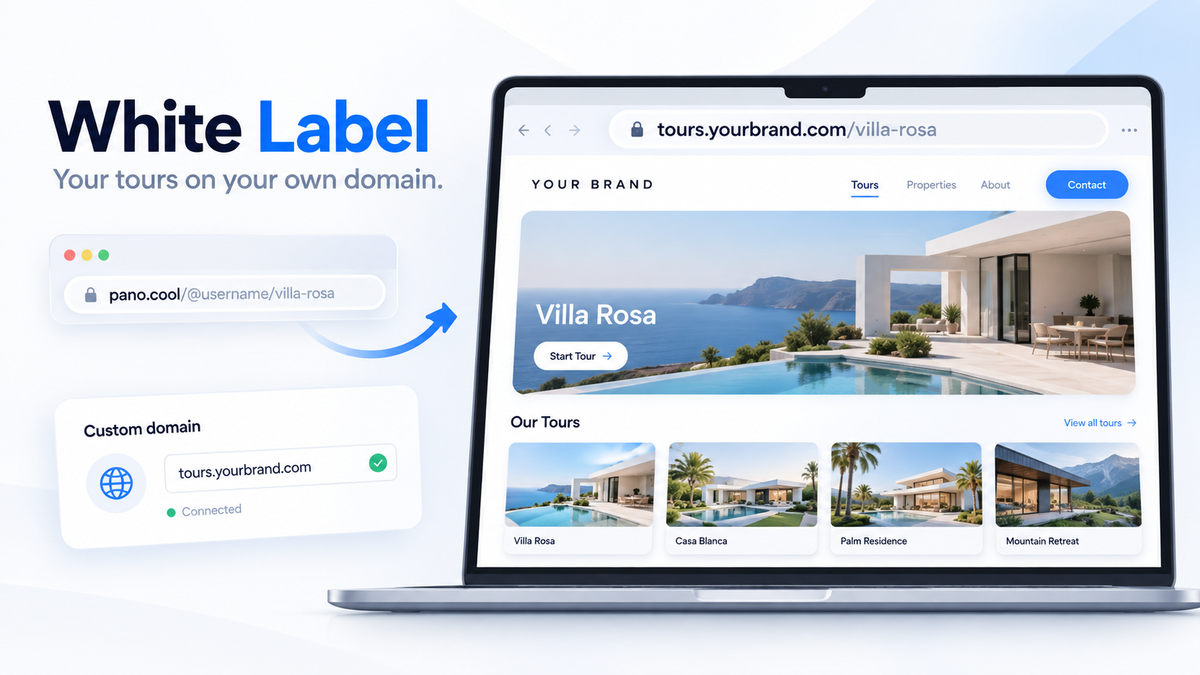
White Label puts every tour you own on one domain of your own. Instead of pano.cool/@username/villa-rosa, visitors open tours.yourbrand.com/villa-rosa.
You connect the domain once, in your account settings. From then on, each tour you own opens there by its project slug, with no limit on the number of tours or views. White Label is part of the Super Cool and Enterprise plans. There is no separate program or add-on to buy.
Before you start
You need:
- A Super Cool or Enterprise plan. On other plans, the White-label domain card offers Upgrade to Super Cool instead.
- A domain you own, and access to its DNS settings at your registrar or DNS provider (Cloudflare, GoDaddy, Namecheap and so on).
Use a subdomain, such as tours.yourbrand.com or 360.yourbrand.com, so your main website stays at yourbrand.com. A root domain like yourbrand.com works too, but only if it is just for tours: it will open your PanoCool portfolio instead of your website.
White label or custom domain?
PanoCool has two ways to use your own domain. White Label puts all your tours on one domain; a custom domain gives one tour a domain of its own.
White label domain | Custom domain | |
|---|---|---|
What opens there | Every tour you own: | One tour, at the domain's root: |
How many | One per account | One per tour: up to 5 on Cool, unlimited on Super Cool |
Where to set it up | Account settings | The editor: Share › Custom Domain |
You can use both. Keep all your tours on tours.yourbrand.com, and also give a client's main tour tour.clienthotel.com. For per-tour domains, see Add a custom domain for your virtual tour.
tep 1: Connect your domain
- Go to Account settings.
- Find the White-label domain card.
- Enter your domain without
https://, for exampletours.yourbrand.com. - Click Connect domain.
The card now shows your domain with the status DNS setup required. That is expected: the domain doesn't point to PanoCool yet.
Step 2: Add the DNS record
The card shows one DNS record to add, with its Type, Name and Value. Use the copy buttons beside each field so nothing gets mistyped.
- A subdomain such as
tours.yourbrand.comgets a CNAME record. - A root domain such as
yourbrand.comgets an A record. - The Name is relative to your domain:
toursfortours.yourbrand.com, and@for the root domain.
PanoCool also looks up who manages your DNS. When it recognizes your provider, the card says DNS managed with and the provider's name, with an Open DNS settings button. Otherwise, Choose my DNS provider… lists popular providers.
At your DNS provider:
- Open the DNS settings for your domain.
- Add a new record with the type, name and value from the card, exactly as shown.
- Save it.
Step 3: Verify DNS
DNS changes take anywhere from a few minutes to a few hours to spread. Once the record is saved, go back to the White-label domain card and click Verify DNS.
When it works, the status changes to Active and verified, and the card says Your branded domain is live. Your tours can now open on your domain once they have a slug (next step).
Still DNS setup required? Compare the record with the card, wait a little longer, and click Verify DNS again. Why is my custom domain not verified? explains how DNS changes spread.
Step 4: Give each tour a slug
Tours open on your domain by their project slug: tours.yourbrand.com/{project-slug}. A tour you haven't named yet has the default slug untitled-project, which gets no white-label link.
- Open the tour in the editor and click Share.
- Next to Everyone with link, click the Choose view links format button to open View links.
- Click Change project slug, enter the new path, for example
villa-rosa, and click Update URL path.
Slug rules:
- Letters, numbers and hyphens only.
- Each slug is unique in your account. If another tour already uses it, PanoCool says so and suggests a free one.
- Avoid the names of PanoCool pages, such as
gallery,pricingsorcontact. A tour with one of those slugs gets no white-label link.
Changing a slug changes the tour's link, so settle it before you share the link.
Step 5: Share the white-label link
Once a tour has a slug, Share › View links lists a White label domain link, such as https://tours.yourbrand.com/villa-rosa. Copy it from there.
To use your domain everywhere, click the star beside that link (Make this your default link format). From then on, the Share panel's link, the embed code and the QR code use your domain for every tour that has a slug.
Your tours' other links keep working: pano.cool/@username/villa-rosa and pano.cool/p/{project-id} still open the same tour. A project-ID link on your own domain, such as tours.yourbrand.com/p/{project-id}, opens the tour on pano.cool instead.
Step 6: Set up your domain's home page
The root of your domain, tours.yourbrand.com, shows your PanoCool portfolio: your name, photo, bio and the tours you choose to list.
- While your portfolio is private, visitors there see a short notice instead. Links to your tours still work.
- To make it public, click Make portfolio public on the White-label domain card.
- To pick the tours it lists, open your portfolio page (
pano.cool/@{username}) while signed in and click Choose projects. Tours you list there also appear on the PanoCool Cool Feed.
Step 7: Brand every tour
Your domain is the first thing visitors see. Inside each tour, set the rest:
- Logo: themes show the PanoCool logo until you change it. In the editor's Theme tab, upload your logo, choose where it links, or hide it.
- Browser tab icon: upload a favicon in the Metatags tab, under Advanced options (Super Cool).
- Title, description and preview image: set them in the Metatags tab. They show in search results and wherever the link is shared.
- Password screen: for a protected tour, open Share › Password Protection › Advanced options and show your own logo, or none (Super Cool).
- Contact details: some themes include a company card. Replace its contact details with yours.
- Colors and fonts: adjust them in the Theme tab.
A few places outside your tours still show PanoCool: the "Powered by PanoCool" line at the bottom of your portfolio page, the "not found" page for a link that matches no tour, and the media address media.pano.cool. What visitors see on a white-label domain has the full list.
Troubleshooting and FAQ
A tour shows "not found" on my domain. Check that:
- the link uses the tour's current slug (Share › View links shows it);
- the tour's status is Active;
- you own the tour, since tours shared with you through Manage Access stay under their owner's links;
- the link has a single path segment. Nested paths such as
tours.yourbrand.com/acme/lobbyaren't supported.
Verify DNS keeps failing. Make sure the record's name and value match the card exactly, and that no older record (an old CNAME or A record) exists for the same name. If your main website is hosted on Vercel under another account, Vercel may need an extra ownership check before your subdomain can open PanoCool tours. Email [email protected] with your domain and we'll help.
Can I connect more than one white-label domain? No, one per account. To give individual tours other domains, add a custom domain to each of them.
Can my clients or my team sign in on my domain? No. Everyone signs in on pano.cool. To give someone access to a tour, use Share › Manage Access.
Can I organize tours by client, like tours.yourbrand.com/acme/lobby? Not with nested paths. Put the client's name in the slug (acme-lobby), give the client's tour its own custom domain, or embed tours on pages of your own website.
How do I disconnect the domain? Click the trash icon on the White-label domain card, then Remove domain. Tours stop opening on that domain until you connect another. Moving to a plan without White Label disconnects it too.
Is White Label a separate program or add-on? No. It is included in Super Cool and Enterprise.
Is there a limit on tours or views? No. Every tour you own can open on your domain, and there is currently no limit on views.